Your server is lagging. Players are rubber-banding, blocks break and reappear, mobs teleport around, and chat messages take seconds to show up. It is the most common Minecraft server problem and it almost always comes down to one of a few things.
This guide covers every major cause of Minecraft server lag and how to fix each one — from quick config changes to hardware upgrades.
First: Understand the Two Types of Lag
Not all lag is the same. Knowing which type you are dealing with tells you where to look.
Server lag (TPS drop) — The server itself cannot keep up. You will see blocks snapping back, delayed interactions, mobs freezing in place, and redstone behaving weirdly. This affects everyone on the server equally.
Network lag (ping/latency) — The connection between a player and the server is slow. That player sees rubber-banding and delayed actions, but other players might be fine. This is usually a distance or ISP issue.
You can check your server's TPS (ticks per second) to tell which one it is. A healthy server runs at 20 TPS. If it drops below that, the server is struggling.
/tps
Most server software (Paper, Spigot, Purpur) supports this command. If your TPS is consistently below 18, you have server-side lag. If TPS is 20 but players still complain, it is a network issue on their end.
The #1 Cause: Not Enough RAM
This is by far the most common reason servers lag. Minecraft is a memory-hungry game, and the server needs enough RAM to hold the world, entities, plugins, and player data in memory.
When the server runs out of available RAM, Java's garbage collector kicks in aggressively — freezing the entire server for hundreds of milliseconds at a time. Those freezes are the TPS drops your players feel.
How Much RAM Do You Actually Need?
Here is a realistic guide based on what we see across thousands of servers:
| Setup | Recommended RAM |
|---|---|
| 1-5 players, vanilla | 2-3 GB |
| 5-10 players, a few plugins | 4 GB |
| 10-20 players, 10-20 plugins | 6-8 GB |
| 20-50 players, heavy plugins (dynmap, world gen) | 8-12 GB |
| Modded (50-100 mods) | 6-8 GB |
| Heavy modpacks (150+ mods) | 10-16 GB |
| Large network / proxy | 12-16 GB+ |
Common mistake: allocating too little RAM and wondering why the server stutters. If you are running a modded server on 2 GB, that is your problem right there.
Less common mistake: allocating too much RAM. Giving a server 16 GB when it only needs 4 GB means Java's garbage collector has more memory to scan, which can actually cause longer pause times. Match your allocation to your actual usage.
How to Check RAM Usage
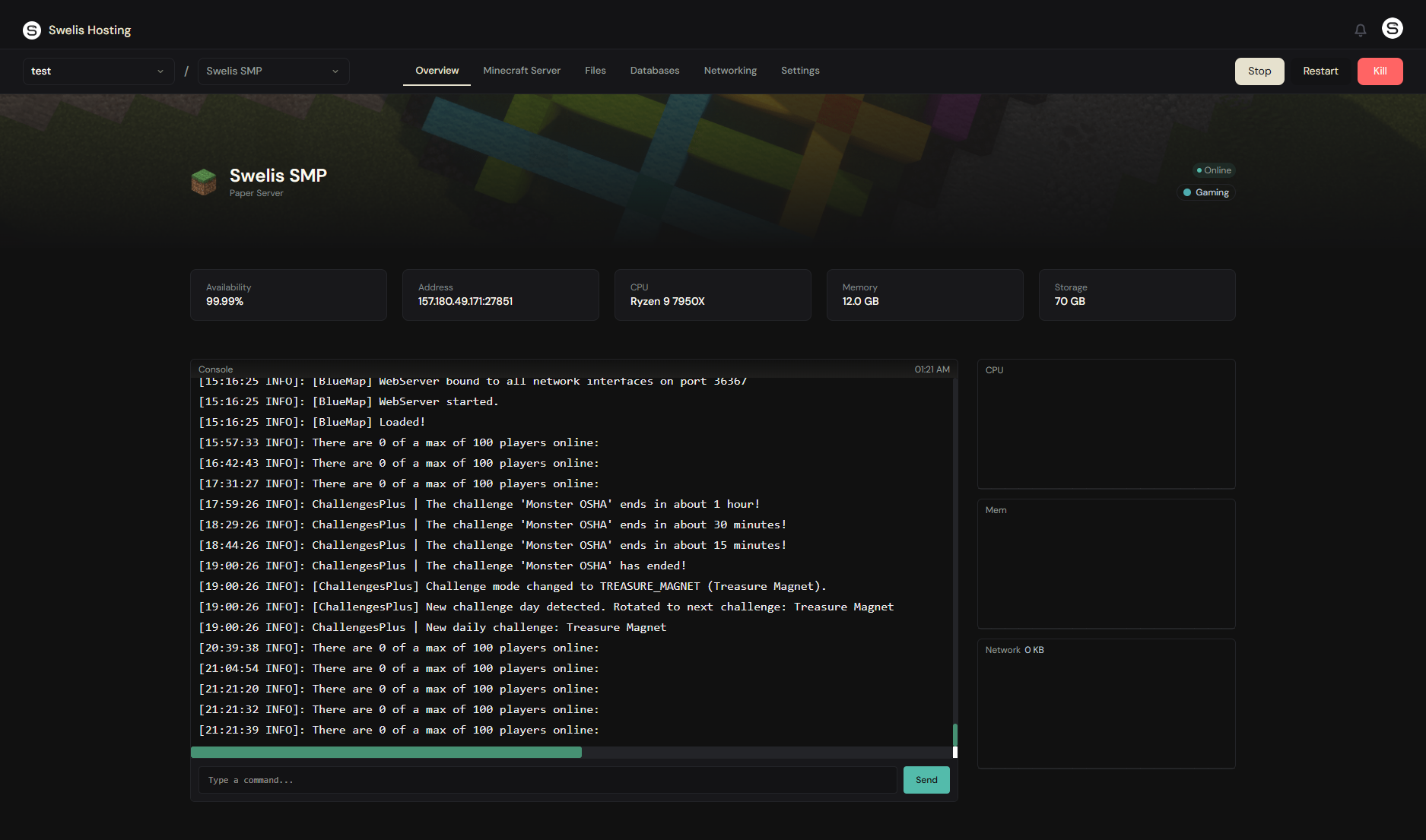
On most server panels (including Swelis), you can see real-time memory usage in the dashboard. If your server is consistently using 80%+ of its allocated RAM, it needs more.
You can also check from the console:
/memory
Or if you have Spark installed (highly recommended):
/spark health
Java Flags Matter More Than You Think
The default Java settings are not great for Minecraft servers. The right JVM flags can dramatically reduce lag spikes from garbage collection.
Aikar's Flags (Recommended)
These are the gold standard for Minecraft servers. They optimize garbage collection for Minecraft's memory usage patterns:
java -Xms4G -Xmx4G -XX:+UseG1GC -XX:+ParallelRefProcEnabled -XX:MaxGCPauseMillis=200 -XX:+UnlockExperimentalVMOptions -XX:+DisableExplicitGC -XX:+AlwaysPreTouch -XX:G1NewSizePercent=30 -XX:G1MaxNewSizePercent=40 -XX:G1HeapRegionSize=8M -XX:G1ReservePercent=20 -XX:G1HeapWastePercent=5 -XX:G1MixedGCCountTarget=4 -XX:InitiatingHeapOccupancyPercent=15 -XX:G1MixedGCLiveThresholdPercent=90 -XX:G1RSetUpdatingPauseTimePercent=5 -XX:SurvivorRatio=32 -XX:+PerfDisableSharedMem -XX:MaxTenuringThreshold=1 -jar server.jar nogui
Important: Set -Xms and -Xmx to the same value. This prevents Java from wasting time resizing the heap.
On Swelis Hosting, Aikar's flags are applied automatically. You do not need to configure them manually.
Use Java 21
If you are still on Java 8 or Java 11, upgrade. Java 17+ has significantly better garbage collection, and Java 21 (the current LTS) is the best option for modern Minecraft versions. The performance difference is real — we are talking 10-20% better TPS on the same hardware.
Use Paper (or Purpur), Not Vanilla
The vanilla Minecraft server is not optimized for multiplayer. Paper is a drop-in replacement that includes dozens of performance patches:
- Faster chunk loading and generation
- Optimized entity AI and ticking
- Reduced memory usage
- Anti-xray built in
- Better async chunk saving
Switching from vanilla or Spigot to Paper is one of the single biggest performance improvements you can make. It is compatible with all Bukkit and Spigot plugins.
Purpur goes even further with additional optimizations and configuration options. If you want maximum performance, Purpur is the way to go.
Optimize server.properties
A few settings in server.properties have a big impact on performance:
| Setting | Default | Recommended | Why |
|---|---|---|---|
view-distance | 10 | 6-8 | Fewer chunks loaded per player = less CPU and RAM |
simulation-distance | 10 | 4-6 | Controls how far entities tick (Paper/1.18+) |
max-tick-time | 60000 | -1 | Prevents server from killing itself during GC pauses |
network-compression-threshold | 256 | 256 | Fine as default; lower values use more CPU |
View distance is the big one. Every chunk in a player's view distance has to be loaded, stored in RAM, and ticked. Reducing from 10 to 6 cuts the loaded chunks per player by more than half.
If you use Paper, you can also set send-distance separately from view-distance — so players see far but only nearby chunks actually tick.
Optimize Paper/Spigot Config
Paper and Spigot have their own config files with performance-critical settings.
spigot.yml
settings:
  save-user-cache-on-stop-only: true

world-settings:
  default:
    entity-activation-range:
      animals: 16        # default 32
      monsters: 24       # default 32
      raiders: 48
      misc: 8            # default 16
    merge-radius:
      item: 4.0          # default 2.5 — merge dropped items more aggressively
      exp: 6.0           # default 3.0
    mob-spawn-range: 6   # default 8
paper-world-defaults.yml (Paper 1.19+)
chunks:
  max-auto-save-chunks-per-tick: 8    # default 24
  delay-chunk-unloads-by: 10s         # keeps chunks loaded briefly after players leave

entities:
  armor-stands:
    tick: false           # armor stands don't need to tick

spawn:
  spawn-limits:
    monsters: 50          # default 70
    animals: 8            # default 10
    water-ambient: 2      # default 20
    ambient: 1            # default 15
These settings reduce the server's workload without players noticing much difference. Lowering mob caps and entity activation ranges are the highest-impact changes.
Find What Is Actually Lagging: Use Spark
Guessing at lag causes wastes time. Spark is a free profiling plugin that tells you exactly what is eating your server's performance.
Install it, then run:
/spark profiler start
Play normally for a few minutes, then:
/spark profiler stop
Spark generates a detailed report showing which plugins, entities, or world operations are consuming the most CPU time. It takes the guesswork out entirely.
/spark tps        — shows TPS history
/spark health     — quick overview of CPU, RAM, TPS
/spark gc         — garbage collection stats
If one plugin is eating 40% of your tick time, you know exactly what to fix or replace.
Common Lag Sources and Fixes
Too Many Entities
Hundreds of loose item drops, mobs crammed in farms, or villager trading halls can tank TPS.
Fixes:
- Use
/kill @e[type=item]to clean up dropped items - Install a plugin like ClearLagg to auto-remove dropped items and limit mob counts
- Reduce mob spawn limits in Paper config
- Break up massive mob farms — 200 mobs in one chunk is brutal on the server
Chunk Generation
Exploring new terrain is one of the most CPU-intensive things in Minecraft. When players venture into unloaded areas, the server has to generate chunks on the fly.
Fixes:
- Pre-generate your world using Chunky — run
/chunky radius 5000then/chunky startto generate a 5000-block radius in advance - Lower view distance so the server generates fewer chunks at once
- Use Paper — it handles chunk generation significantly better than Spigot or vanilla
Heavy Plugins
Some plugins are badly optimized and eat server resources constantly. Common offenders:
- Dynmap — rendering the map is CPU-intensive. Set a longer render interval.
- Logging plugins that write to disk on every block break
- Anti-cheat plugins that check every player movement tick
- Custom mob/boss plugins with complex AI
Use Spark to identify which plugins are the heaviest, then decide if you can configure them better or replace them.
Redstone Machines
Large redstone contraptions (especially clocks and flying machines) tick every game tick and can cause significant lag.
Fixes:
- Paper has built-in redstone optimizations (alternate redstone algorithm)
- Limit redstone clock speeds with plugins
- Talk to your players about keeping contraptions reasonable
World Size
A world that has been explored for years accumulates a massive amount of region files. While the server only loads nearby chunks, a bloated world can slow down backups, startup time, and disk I/O.
Fixes:
- Use WorldBorder to limit exploration range
- Trim unused chunks with MCASelector
- Reset the Nether/End periodically if they are heavily explored but not built in
Network Lag (High Ping)
If your TPS is solid at 20 but players still complain about lag, the issue is between their computer and the server.
Common causes:
- Distance — A player in Australia connecting to a server in Germany will have 250+ ms ping. Physics.
- Wi-Fi — Unstable Wi-Fi connections cause packet loss and jitter. Ethernet cables fix this instantly.
- ISP routing — Sometimes the route between a player's ISP and your server host is inefficient. Not much you can do about this.
- Server bandwidth — If you self-host and your upload speed is low, players will lag. Minecraft needs about 0.5-1 Mbps upload per player.
Fixes:
- Choose a server location close to the majority of your players
- Players should use wired connections when possible
- If self-hosting, check your upload speed at speedtest.net
On hosted servers, this is mostly handled for you — data centers have gigabit connections and are located at major network hubs.
Hardware: CPU Matters More Than RAM
Past a certain point, throwing more RAM at the problem does not help. Minecraft servers are single-threaded for the main game loop — meaning one fast CPU core matters more than 16 slow ones.
What actually affects server performance, in order of importance:
- CPU single-thread speed — the faster the better
- RAM amount — enough for your player count and plugins (see table above)
- Disk speed — NVMe SSD is ideal; spinning drives are a bottleneck for chunk loading
- RAM speed — faster RAM helps, but it is lower priority
If you are self-hosting on an old office PC with a Celeron processor, no amount of optimization will fix the lag. The CPU just cannot keep up.
Quick Checklist
If your server is lagging, go through this list:
- Check TPS — is it below 18? If so, server-side issue
- Check RAM — is usage above 80%? Allocate more or reduce load
- Use Paper or Purpur — not vanilla or Spigot
- Apply Aikar's flags — or use a host that does it automatically
- Lower view distance — 6-8 instead of 10
- Lower simulation distance — 4-6
- Reduce mob caps — lower spawn limits in paper config
- Install Spark — profile to find the actual bottleneck
- Pre-generate chunks — use Chunky
- Clear entities — install ClearLagg or similar
- Check plugins — remove or reconfigure heavy ones
- Use Java 21 — significant performance improvement over older versions
When Optimization Is Not Enough
Sometimes you have done everything right — Paper, Aikar's flags, optimized configs, profiled with Spark — and the server still cannot keep up. That usually means the hardware is the bottleneck.
Self-hosted servers are limited by your home PC's CPU, your internet upload speed, and the fact that your computer has to be on 24/7. If you are hitting those limits, it might be time to move to dedicated hardware.
On Swelis Hosting, servers run on high-frequency CPUs with NVMe storage and Aikar's flags pre-configured. You pick a RAM tier, we handle the rest — no JVM tuning, no firewall rules, no hardware limitations. And if you need more RAM as your server grows, you can upgrade your plan in a few clicks.
But whether you self-host or use a provider, the optimization tips above apply either way. Good configs and the right server software make a bigger difference than raw hardware in most cases.
Happy building.
Related Guides
- Best Minecraft Server Plugins 2026 — includes performance plugins like Chunky and Spark
- How to Set Up Your First Minecraft Server in Under 2 Minutes — start fresh with a properly configured server
- How to Make a Minecraft SMP Server in 2026 — the complete SMP guide with plugin recommendations
- How to Port Forward a Minecraft Server — network setup for self-hosted servers
- One-Click Modpack Install — install performance plugins in seconds
- Minecraft Server Console Commands Cheat Sheet — every command you need, organized by category