You run a survival server. Your players are out there grinding, building, exploring — doing survival things. But then your build team needs to work on a new spawn, test a crazy redstone contraption, or plan out a whole new area. What do you do?
You could give them creative mode on survival. But we all know how that ends.
Creative Sync is a better way. It gives your build team a dedicated creative server that automatically mirrors your survival world — so they can experiment freely without touching the real thing.
How Does It Work?
The concept is simple: your survival server is the source of truth. Creative Sync copies the world from survival to a separate creative server, keeping it up to date on whatever schedule you choose.
Your builders join the creative server, flip to creative mode, and go wild. They have the actual survival terrain to work with — real mountains, real rivers, real player builds. No guesswork, no empty superflat worlds.
The Flow
- Players play survival normally — nothing changes for your community
- Sync runs on schedule — survival world copies to creative automatically
- Builders experiment on creative — with the real world as their canvas
- Rinse and repeat — creative stays fresh with the latest survival world
Backups are created automatically before every sync. If something goes sideways, one click rolls it back.
Setting It Up Takes 30 Seconds
You need two Minecraft servers on Swelis — your survival server and a creative server. They can be on totally different plans.
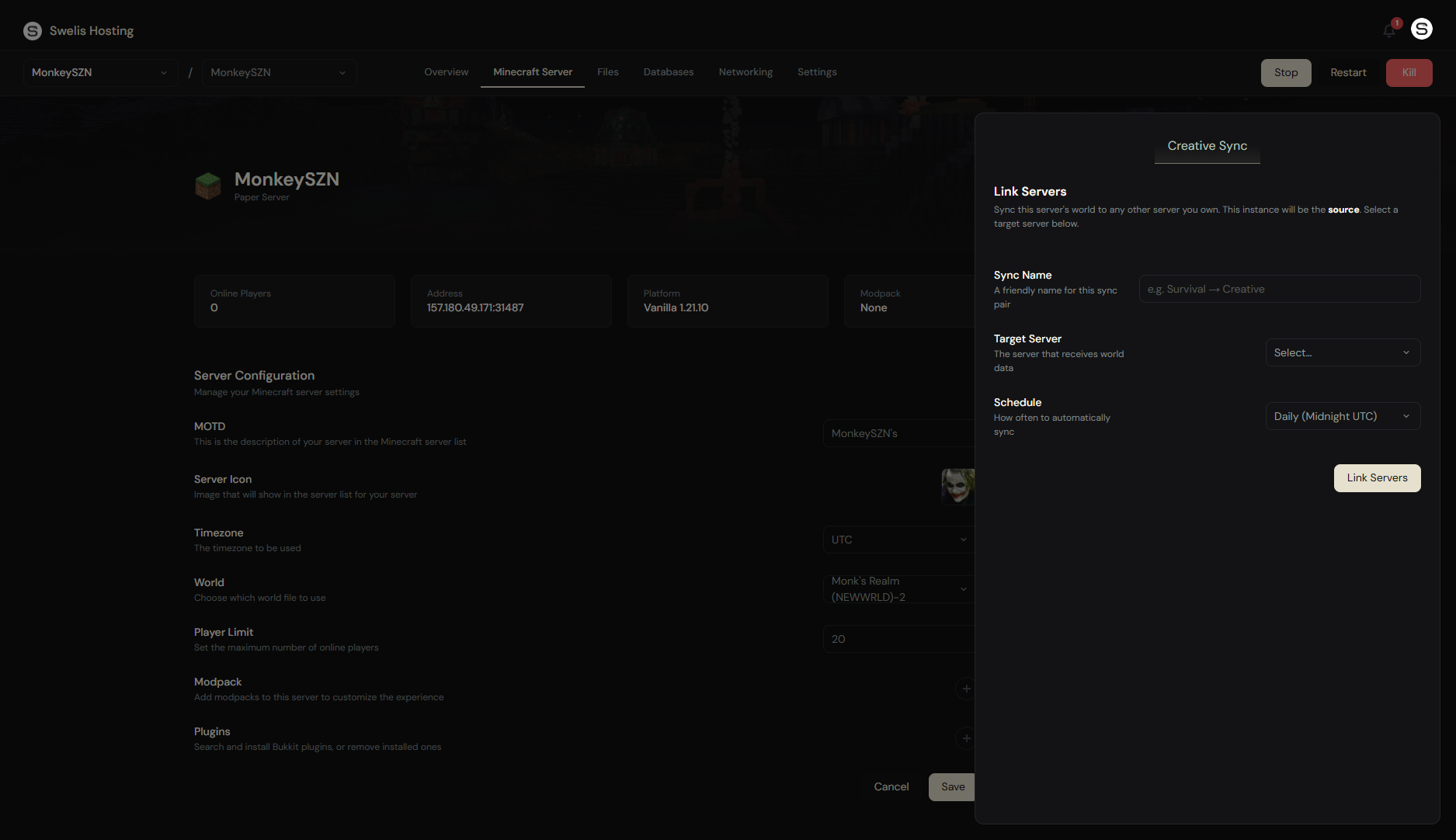
From your dashboard, open the Minecraft tab on the survival server and scroll to Creative Sync. Pick your target creative server, give it a name, and you are done.
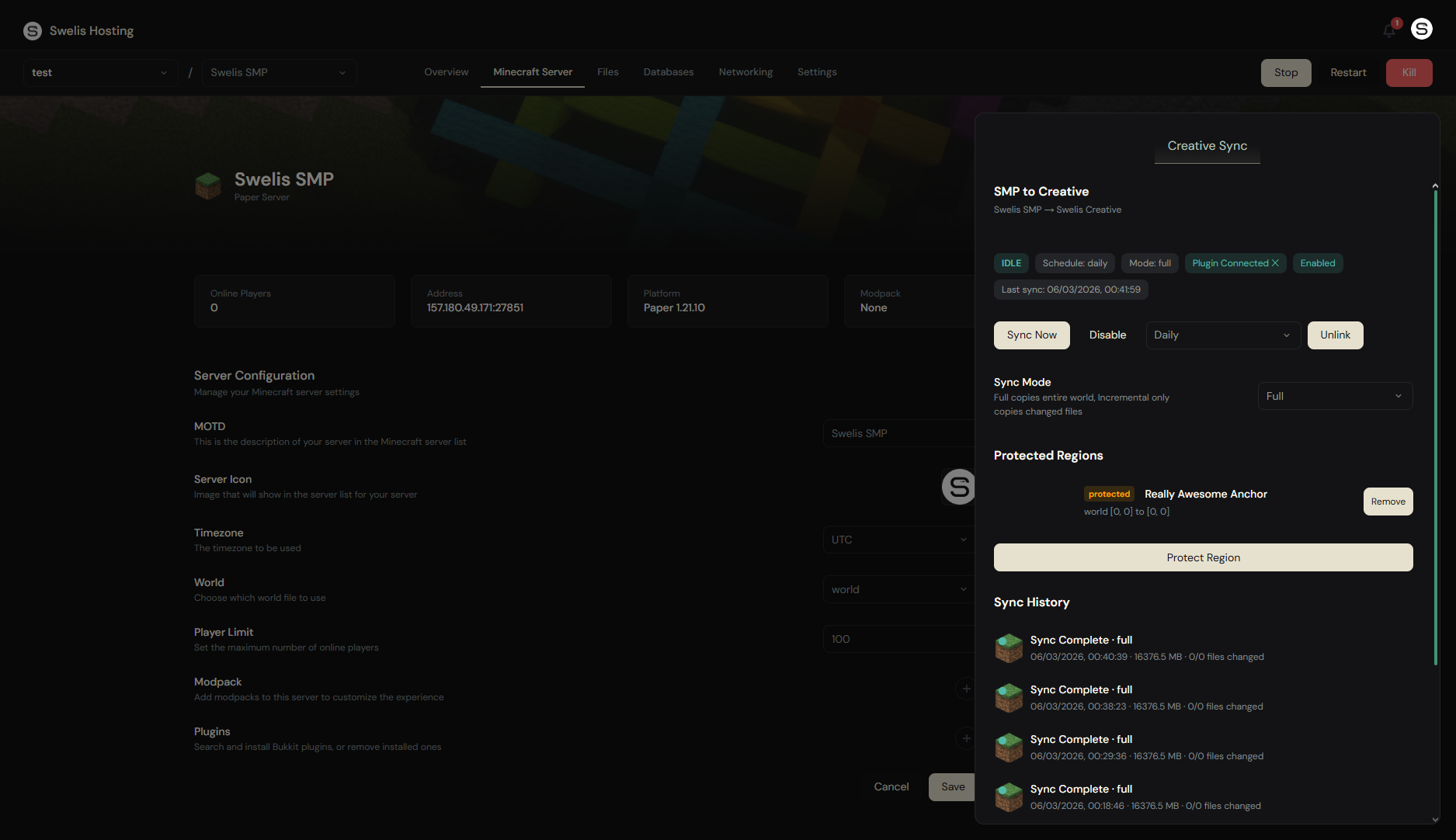
That is literally it. Your first sync starts with one click.
Full Sync vs. Incremental
You get two sync modes to choose from:
Full Sync copies the entire survival world to creative. This is the reliable "nuke and replace" option — great for initial setup or when you want a completely fresh copy.
Incremental Sync is the smart one. It compares file checksums and only transfers what actually changed since the last sync. If your survival world is 16 GB but only 200 MB of region files changed, that is all it copies. Way faster for regular updates.
| Full Sync | Incremental Sync | |
|---|---|---|
| Speed | Slower (copies everything) | Fast (only changes) |
| Best for | First sync, full refresh | Regular scheduled syncs |
| Data transferred | Entire world | Only modified files |
Switch between modes anytime from the dashboard.
Protected Regions — Your Builders' Safety Net
Here is the thing that makes Creative Sync actually useful for build teams: protected regions.
Picture this — your builders are halfway through an epic new spawn on creative. The next scheduled sync runs and... overwrites everything with the latest survival world. All that work, gone.
Protected regions prevent that. You define areas on the creative server (in chunk coordinates) that should never be overwritten during a sync. The rest of the world gets updated from survival, but your in-progress builds stay exactly where they are.
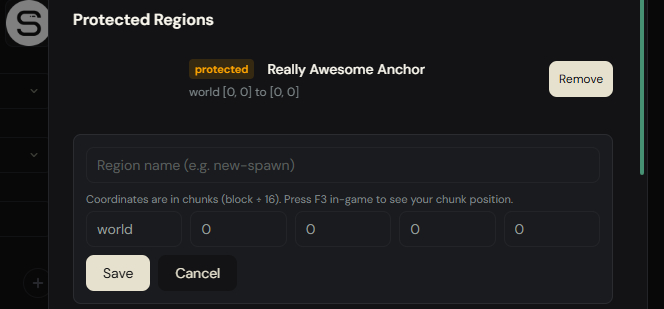
Example: Your build team is working on a new spawn between chunks [-5, -5] and [5, 5]. Add that as a protected region. Every sync updates the creative world from survival — except that area. Your builders' work is untouched.
When the build is finished and ready to go live on survival, just remove the protection. Next sync updates that area too.
Heads up: Coordinates are in chunks, not blocks. One chunk = 16 blocks. Press F3 in-game to see your chunk position, or just divide your block coordinates by 16.
The Plugin Keeps Builders Safe
When a sync runs, the creative server restarts to load the updated world. But what about the builders who are online?
Our Spigot/Paper plugin handles everything:
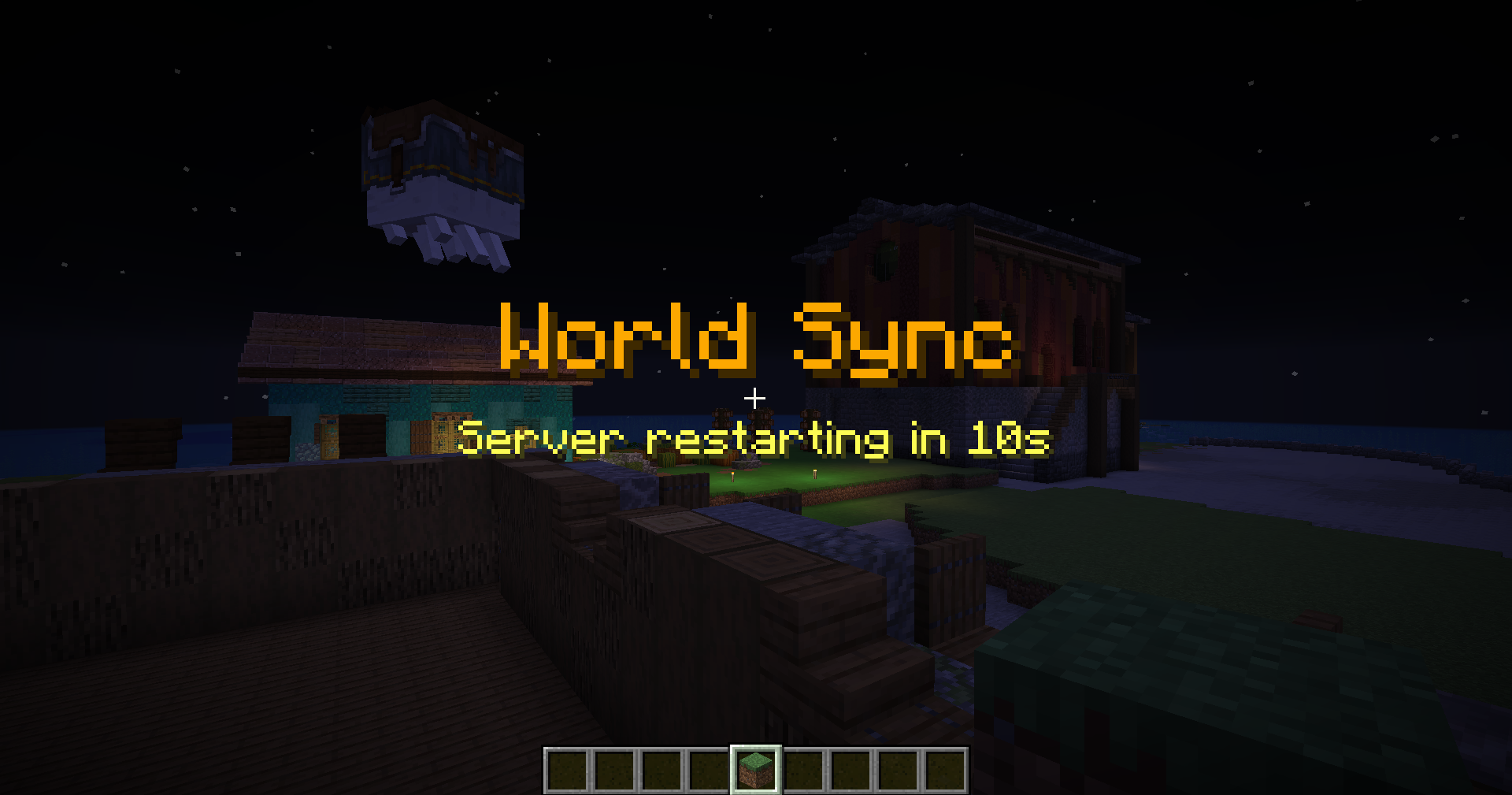
- Countdown — Builders see title messages: 60s, 30s, 10s, 5... 4... 3... 2... 1
- Snapshot — Every player's inventory, location, XP, effects, and gamemode are saved
- Disconnect — Players are kicked with a friendly "sync in progress" message
- Sync happens — World updates, server restarts
- Rejoin — Builders reconnect and are restored exactly where they were
No lost items. No confusion. Builders pick up right where they left off, now with the freshest copy of survival.
One-Click Install
You do not need to mess with FTP or config files. Click Install Plugin in the dashboard and it handles everything — uploads the JAR, generates the config with your secure token, and restarts the server. Done.
In-Game Commands
The plugin adds /csync for admins:
| Command | What it does |
|---|---|
/csync status | Check sync info and last sync time |
/csync trigger | Pull the latest survival world right now |
/csync protect add <name> <x1> <z1> <x2> <z2> | Define a protected region |
/csync protect list | List all protected regions |
/csync protect remove <name> | Remove a protection |
/csync history | View recent sync events |
Regions defined in-game sync to the dashboard automatically, and vice versa. Your build team can manage protections from wherever is convenient.
Sync History
Every sync is tracked. The dashboard shows your last 10 syncs with status, timestamps, file sizes, and whether anything went wrong.
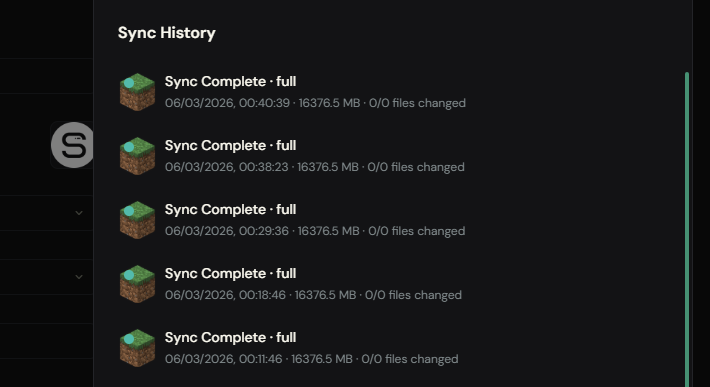
Incremental syncs also show how many files changed vs total files — so you can see exactly how much work each sync saved.
Scheduling
You have four options:
- Manual — sync only when you click the button (or use
/csync trigger) - Every 6 hours — creative updates four times a day
- Every 12 hours — twice daily refresh
- Daily — syncs at midnight UTC
Pick what makes sense for your workflow. Frequent survival changes? Go with 6h. Stable world that does not change much? Daily is plenty.
When Should You Use This?
- Spawn building — Protect your WIP spawn on creative while the rest stays synced with survival
- Event planning — Build and test event arenas on creative using real terrain
- Redstone labs — Prototype farms and contraptions on the actual world before building on survival
- Build team coordination — Everyone works on the same up-to-date copy, protects their active projects
- Map art and decoration — Plan large-scale projects with full context of the surrounding area
Quick Recap
| Feature | Details |
|---|---|
| Setup time | 30 seconds |
| Sync modes | Full or Incremental |
| Scheduling | Manual, 6h, 12h, or daily |
| Protected regions | Exclude areas from being overwritten |
| Player protection | Plugin saves and restores inventories, XP, location |
| Plugin install | One-click from dashboard |
| Backups | Automatic before every sync |
| Rollback | One click or /csync rollback |
Related Guides
- How to Make a Minecraft SMP Server in 2026 — the complete guide to running an SMP alongside Creative Sync
- How to Fix Minecraft Server Lag — keep both your survival and creative worlds running smooth
- Best Minecraft Server Plugins 2026 — top 20 plugins including WorldEdit
- One-Click Modpack Install — add WorldEdit and building tools instantly
Creative Sync is available now on all Minecraft hosting plans. Head to your dashboard, link your survival and creative servers, and give your build team the workflow they deserve.
Happy building.