One Panel for Everything
The Swelis Control Panel is where you manage every aspect of your hosting — Minecraft servers, Avorion galaxies, WordPress sites, databases, and more. No SSH, no command line, no cPanel. Just open your browser and you're in control.
Here's a walkthrough of every feature.
The Dashboard
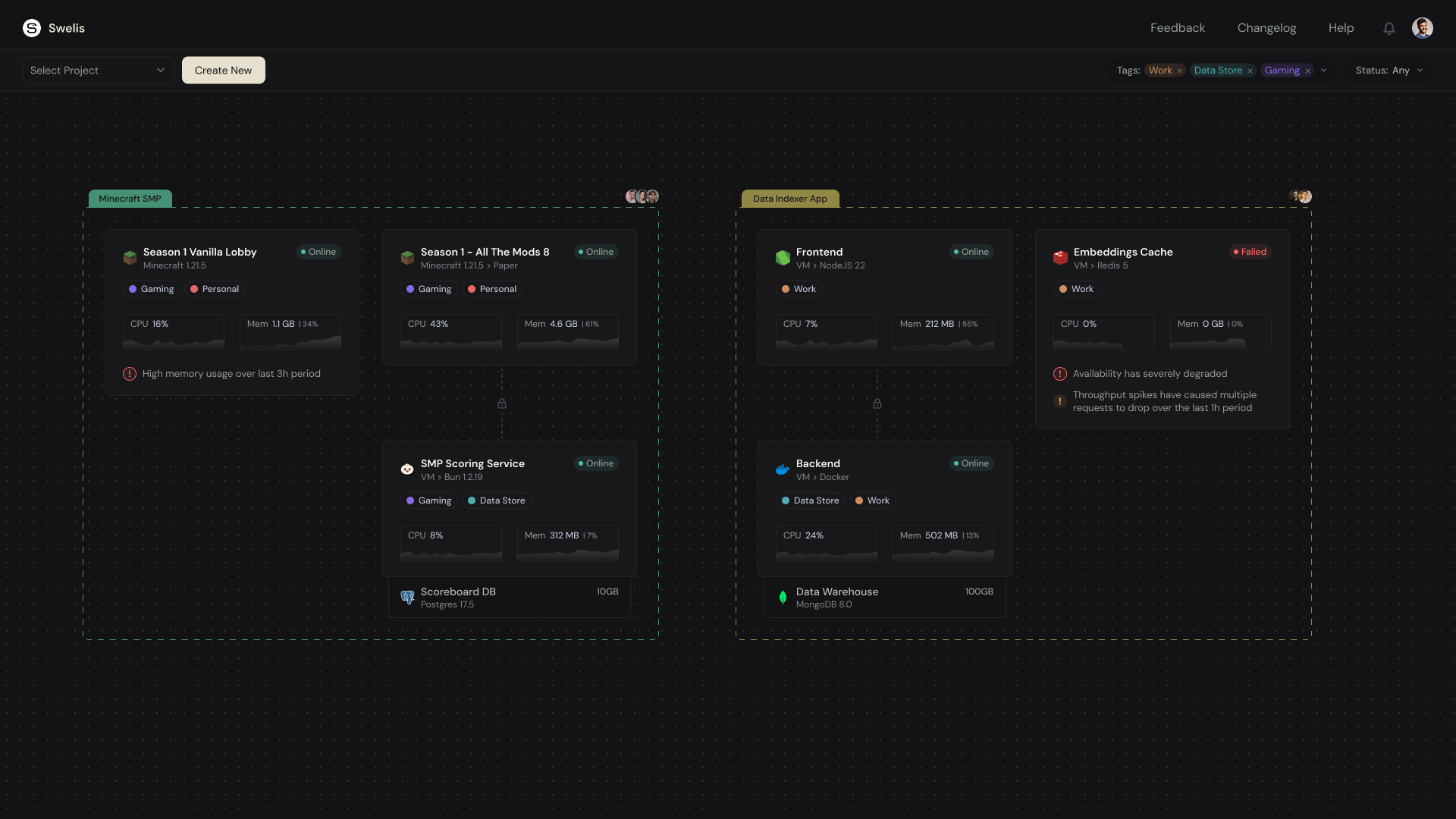
When you log in, you land on the Board — a visual canvas showing all your services as interactive cards. Each card displays the service name, status (Online, Offline, or Pending), tags, and type.
You can drag cards to arrange them however you like, and pan and zoom the board to organize large deployments. Services are grouped into Projects, and you can switch between projects from the toolbar.
Click any card to expand into its full management view.
Service Overview
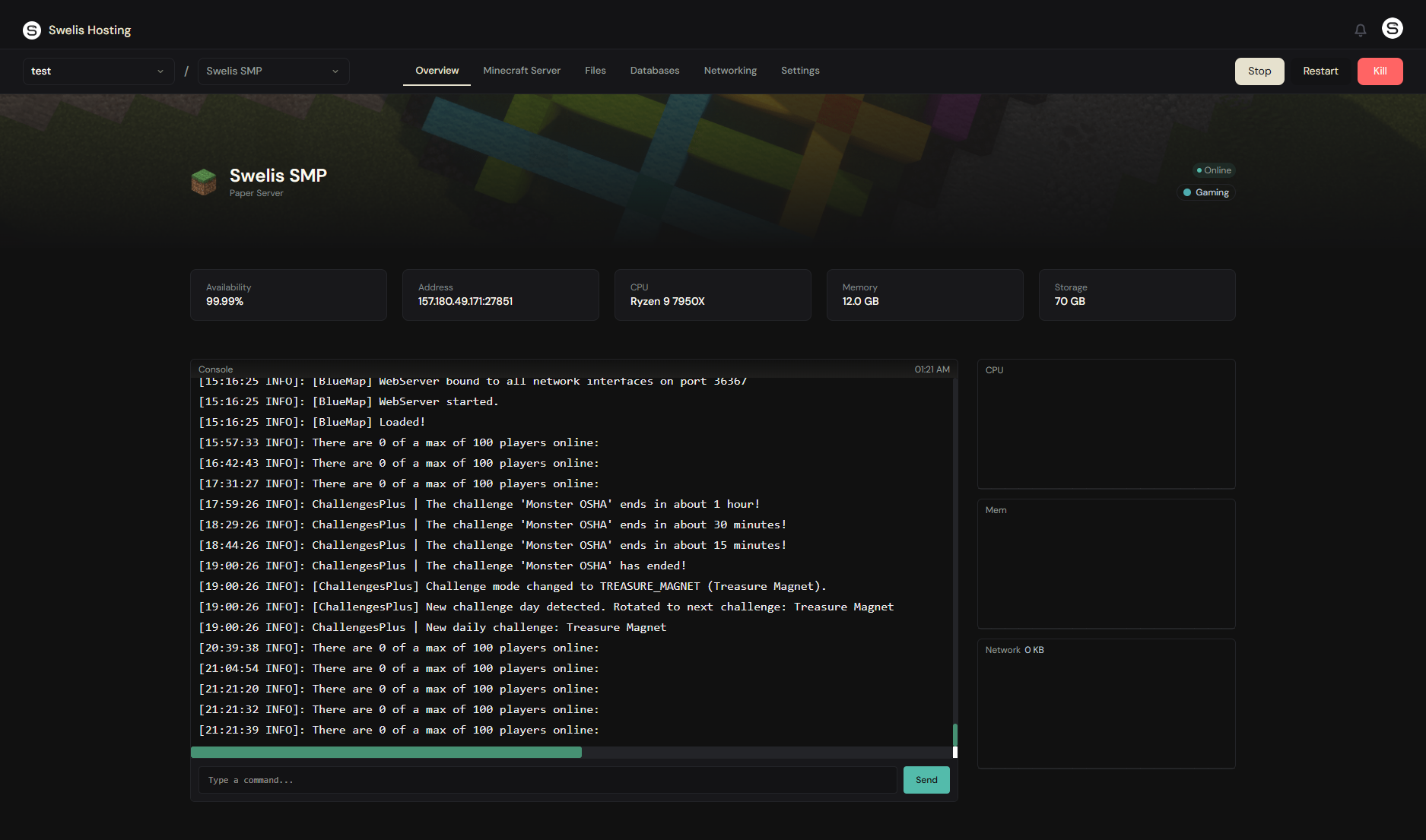
Every service — whether it's a Minecraft server, an Avorion galaxy, or a WordPress site — opens to the Overview tab showing:
- Server address and port — Copy and share with your team or players
- CPU, RAM, and network graphs — Live performance metrics streamed in real-time, updated every second
- Live console — See server output as it happens, type commands directly, and watch players join and leave
The console is fully interactive. For Minecraft, run commands like /whitelist add Player or /op Player. For Avorion, try /status or /seed. Output streams in real-time via SSE — no page refreshes needed.
Minecraft Server Management
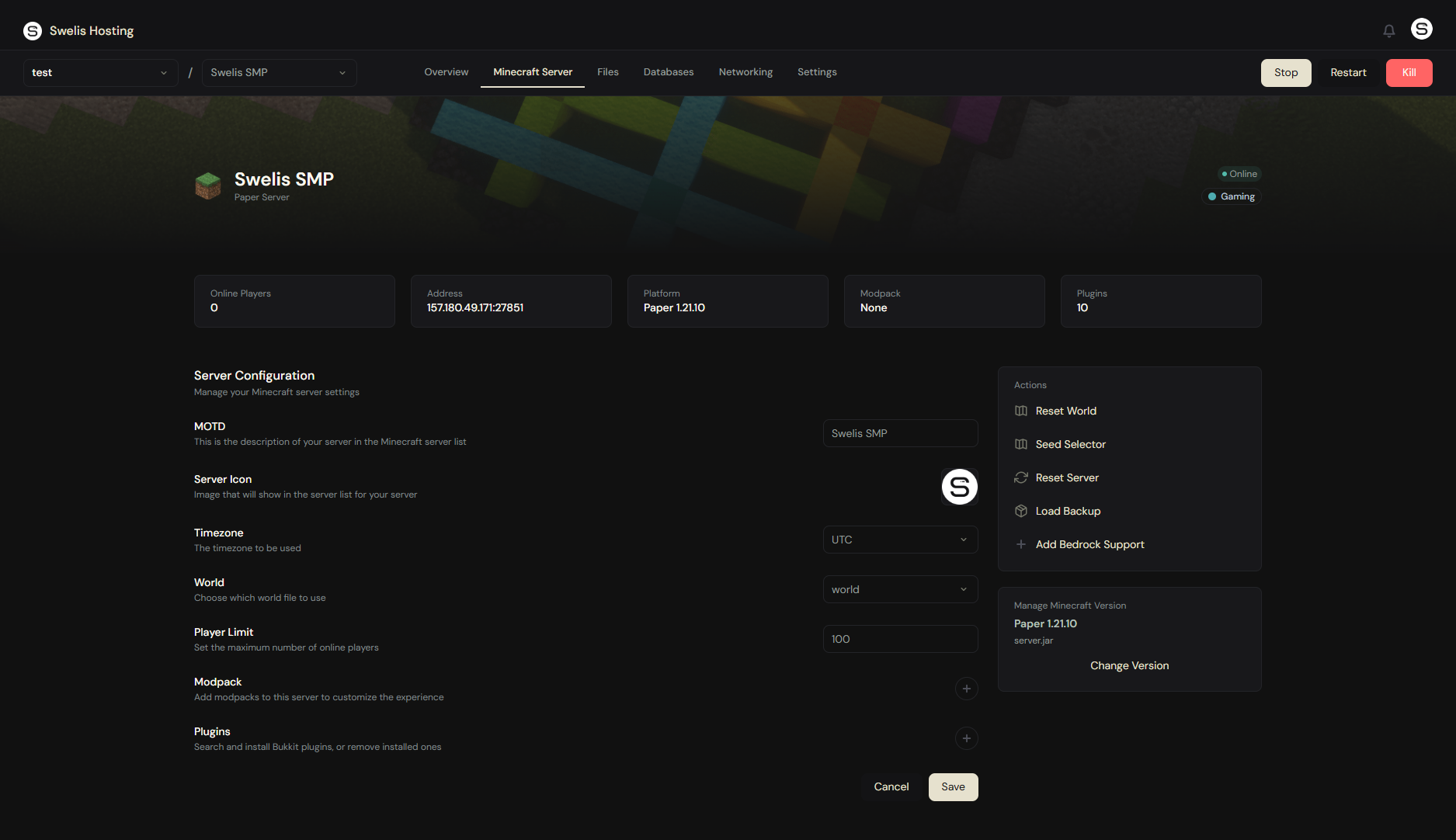
The Minecraft tab is the most feature-rich panel. Here's everything you can do:
Server Config
- MOTD — The description shown in the Minecraft server list
- Server Icon — Choose from presets or upload your own (auto-resized to 64x64)
- World Selector — Switch between multiple worlds (auto-detected from your files)
- Player Limit — Set the maximum number of concurrent players
- Timezone — Choose your server's timezone for log timestamps
Server Software
The Manage Version card shows your current distribution (Paper, Vanilla, Forge, Fabric, BungeeCord) and version. Click Change Version to search across all distributions and install a different version with one click.
Plugins
Click the + button next to Plugins to open the plugin browser. Search thousands of plugins from Modrinth and SpigotMC, and install them with a single click — the .jar gets dropped into your /plugins folder automatically. The Installed tab lists everything currently loaded, with a Remove button for each.
Modpacks
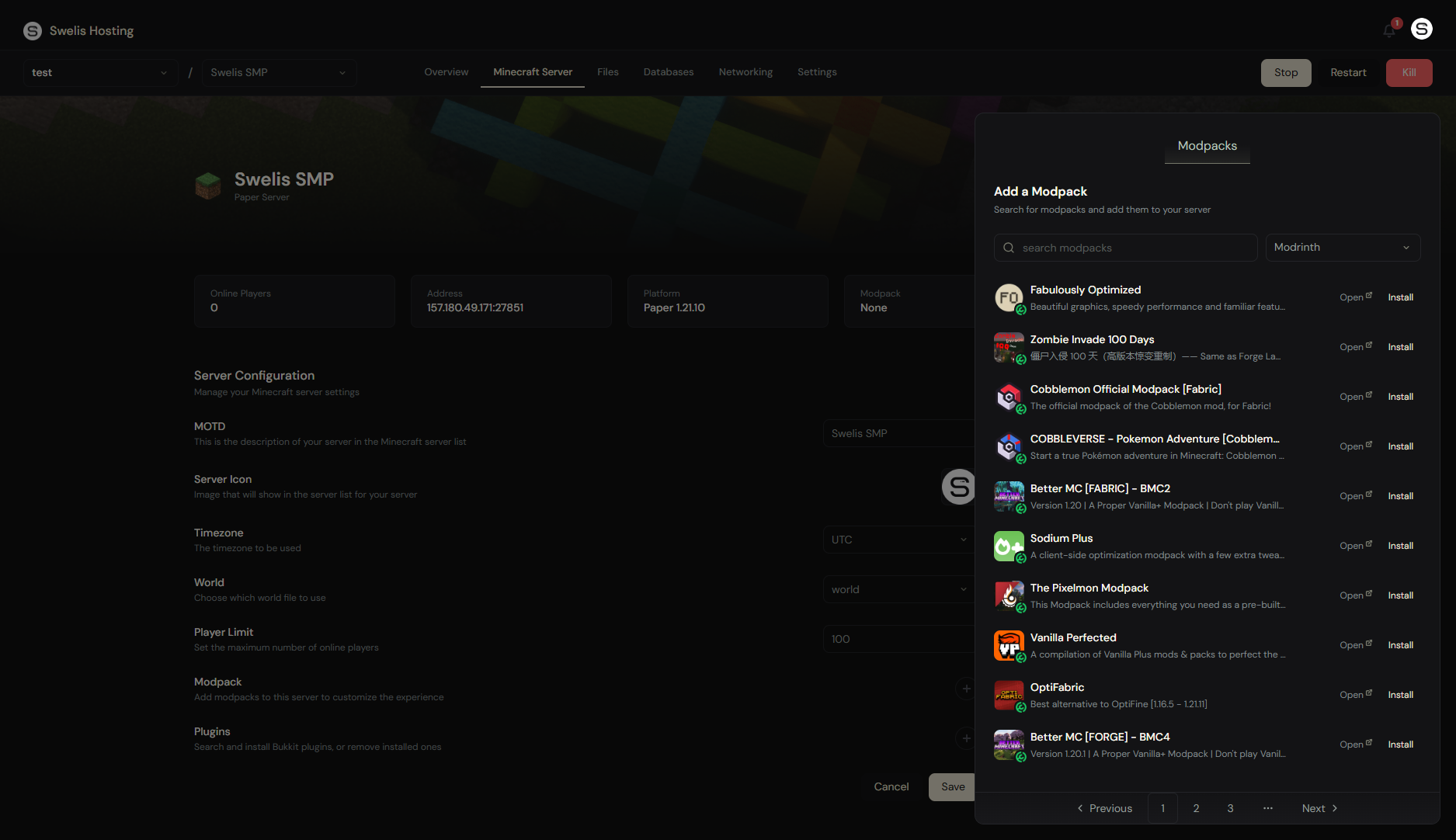
Search and install modpacks from Modrinth directly from the dashboard. Pick a pack, confirm, and the agent handles the full installation — downloading, extracting, and configuring the server files.
Actions
- Reset World — Wipe the world (keeps plugins and configs)
- Seed Selector — Pick from preset seeds (Cherry Blossom Valley, Mountain Range, etc.) or go random
- Reset Server — Full wipe back to a fresh installation
- Load Backup — Open the backup manager to create or restore snapshots
- Creative Sync — Sync worlds between two Minecraft servers on a schedule, with chunk-level region control
- Add Bedrock Support — One-click Geyser installation so Bedrock Edition players can join your Java server
Avorion Server Management
The Avorion tab provides server configuration tailored for Avorion dedicated servers:
- Server Name & Description — What players see in the Steam server browser
- Password — Leave blank for public, or set one to keep it private
- Max Players — Up to 100
- Difficulty — Beginner through Insane
- Collision Damage — Slider from 0x (off) to 1x (full)
- Public Server List — Toggle visibility in the Steam browser
Actions include Reset Galaxy, Reset Server, and Load Backup — all the same one-click operations as Minecraft. Read the full Avorion setup guide for details.
Rust Server Management
The Rust tab gives you control over your survival server:
- Server Name — What appears in the server browser
- Map Size — 2000-6000m world size slider
- Map Seed — Set a specific seed or leave blank for random
- RCON Password — Remote console access credentials
Actions include Reset World (fresh wipe), Reset Server, and Load Backup. Read the Rust setup guide for details.
Terraria Server Management
The Terraria tab (TShock-powered) provides:
- World Name — Your world file name
- World Size — Small, Medium, or Large
- Difficulty — Normal, Expert, Master, or Journey
- Max Players — Up to 255
- Password — Optional server password
Actions include Reset World, Reset Server, and Load Backup. Read the Terraria setup guide for details.
Arma 3 Server Management
The Arma 3 tab handles the complexity of milsim hosting:
- Steam Credentials — For SteamCMD server file downloads
- Difficulty — Recruit, Regular, Veteran, or Custom
- Mission Template — Active mission PBO
- Max Players — Up to 128
- Mods — Semicolon-separated mod list (e.g.
@cba_a3;@ace) - BattlEye — Anti-cheat toggle
- Headless Client — AI offloading for performance
Actions include Reset Server and Load Backup. Read the Arma 3 setup guide for details.
Website Management
For WordPress and Joomla sites, the Website tab offers:
- Live URL — One-click link to your site
- Auto-Login — For WordPress, click "Login to WP-Admin" and you're logged in automatically. No password needed.
- Version Management — Search and install specific WordPress or Joomla versions. Downgrades warn you about compatibility.
- Switch Type — Convert between WordPress and Joomla with a single click (triggers a full re-provision)
- Reset Site — Fresh install of the current framework
- Load Backup — Same backup system as game servers
Custom domains, automatic HTTPS, and more are covered in the WordPress & Joomla guide.
File Manager
The Files tab is a full file browser built into the dashboard:
- Browse your entire server directory tree with breadcrumb navigation
- Upload files by clicking or dragging and dropping — with a progress indicator
- Download any file
- Edit text files (configs, scripts, properties) directly in the browser
- Create new files or folders
- Zip / Unzip files and folders
- Move files between directories
- Multi-select with checkboxes for bulk operations
- Right-click context menu on any file or folder
No FTP client needed for quick edits — but if you prefer one, dedicated FTP credentials are shown at the top of the Files tab.
FTP Access
Every service gets its own dedicated FTP port with auto-generated credentials:
- Encrypted storage — FTP passwords are AES-256-GCM encrypted at rest
- Per-user credentials — When you invite collaborators, each person gets their own FTP login
- Compatible with any client — FileZilla, WinSCP, Cyberduck, or any standard FTP client
FTP address and credentials are displayed at the top of the Files tab. Great for bulk uploads like modpacks, media files, or full site migrations.
Databases
The Databases tab lets you create and manage databases alongside your services:
- Supported engines: PostgreSQL, MongoDB, MySQL
- One-click creation — Pick an engine, enter a name, and credentials are emailed when ready
- Start / Stop each database independently
- Status monitoring with record count and storage size
Backups
Every service supports manual and automatic backups:
- Create a backup — Name it and click Create. Takes a full snapshot of your server files.
- Restore — Pick any backup and restore with one click. Server files are replaced; critical files (like
server.jarandeula.txtfor Minecraft) are preserved. - Storage: up to 2 manual + 2 automatic backups per service. When the limit is reached, the oldest is replaced.
Always back up before version updates, modpack installs, or config changes. Read our backup strategies guide for best practices.
Live Metrics & Alerts
Real-time performance monitoring is built into every service:
- CPU usage — See exactly how much processing power your server uses
- RAM usage — Track memory consumption over time
- Network — Monitor bandwidth in KB/s
Threshold alerts trigger at 50%, 75%, 85%, 90%, 95%, and 100% utilization for CPU, RAM, and disk. You'll get notified by email so you can take action before your players or visitors notice a problem.
Settings & Upgrades
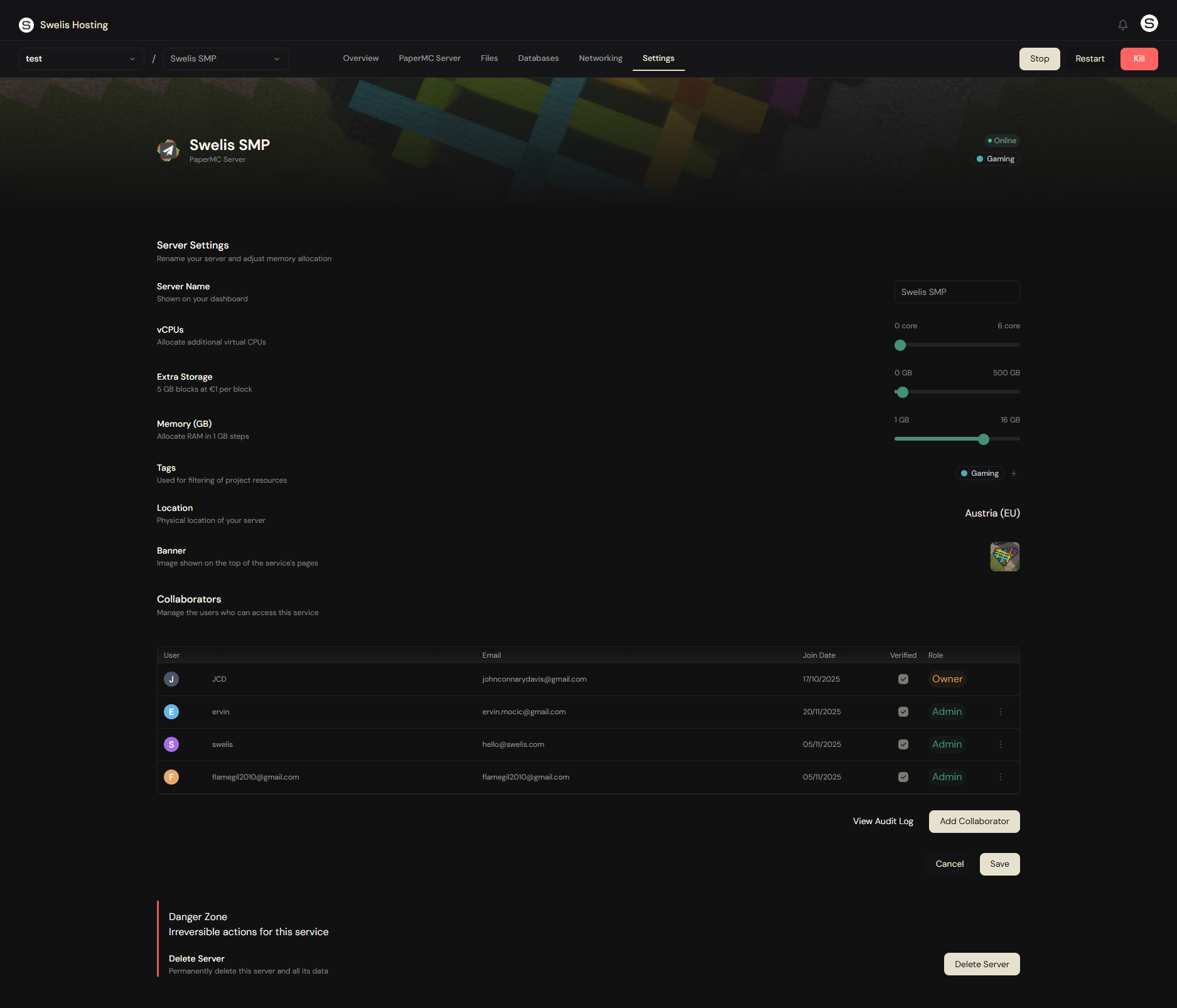
The Settings tab (owner-only) lets you customize and scale your service:
- Rename your service
- Upgrade RAM — Slide to a new amount, pay the prorated difference, and the change applies immediately
- Add CPU cores — Same instant upgrade flow
- Add storage — Expand beyond the default allocation
- Tags — Add colored tags (cyan, teal, blue, purple, orange, red) that appear on your service card
- Server Banner — Upload a custom banner image or pick from presets
All upgrades are prorated — you only pay for the remaining time in your billing cycle.
Team Collaboration
Swelis supports three roles for team access:
| Role | What they can do |
|---|---|
| Owner | Everything — billing, settings, delete, manage collaborators |
| Admin | All operational tabs — console, files, databases, networking, start/stop/restart |
| Viewer | Read-only — overview tab and live console only |
Invite collaborators by email from the Settings tab. Each collaborator gets their own FTP credentials and role-appropriate access. You can change roles or remove access at any time.
Networking
The Networking tab shows all ports allocated to your service and lets you add up to 3 extra ports. This is used automatically by features like Add Bedrock Support (which allocates a UDP port for Geyser) and is available for any custom port forwarding needs.
Project-Level Observability & Deployments
Every project has its own side panel with tabs that show data across all services in the project, not just one. Two of those tabs are brand new: Observability and Deployments.
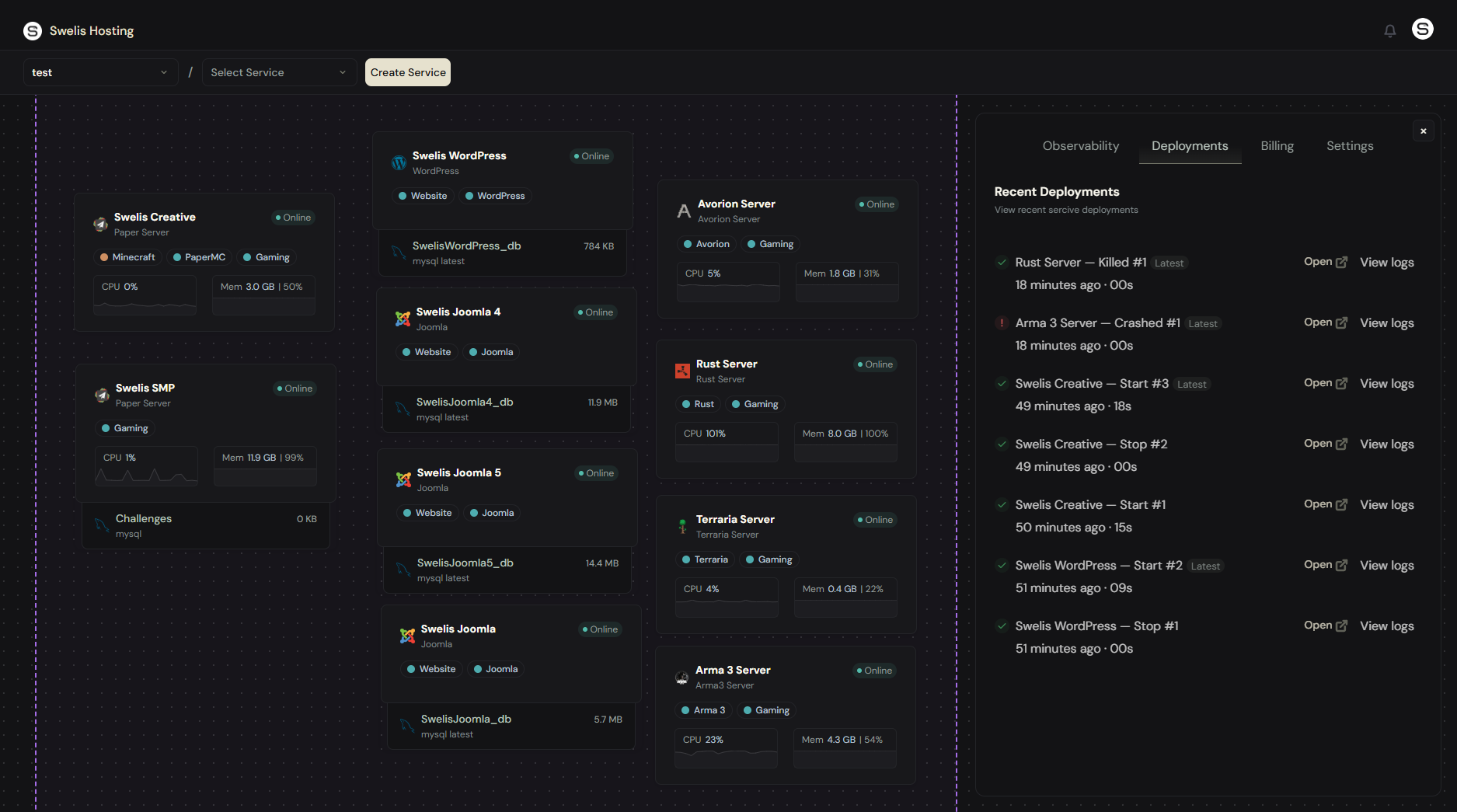
The Deployments Tab
Every time a service starts, stops, restarts, is killed, or crashes — it gets a row, per project. You see what happened, how long it took, who triggered it, and whether it's the latest action for that service. Click Open on any row to jump directly into that service's panel.
The Observability Tab
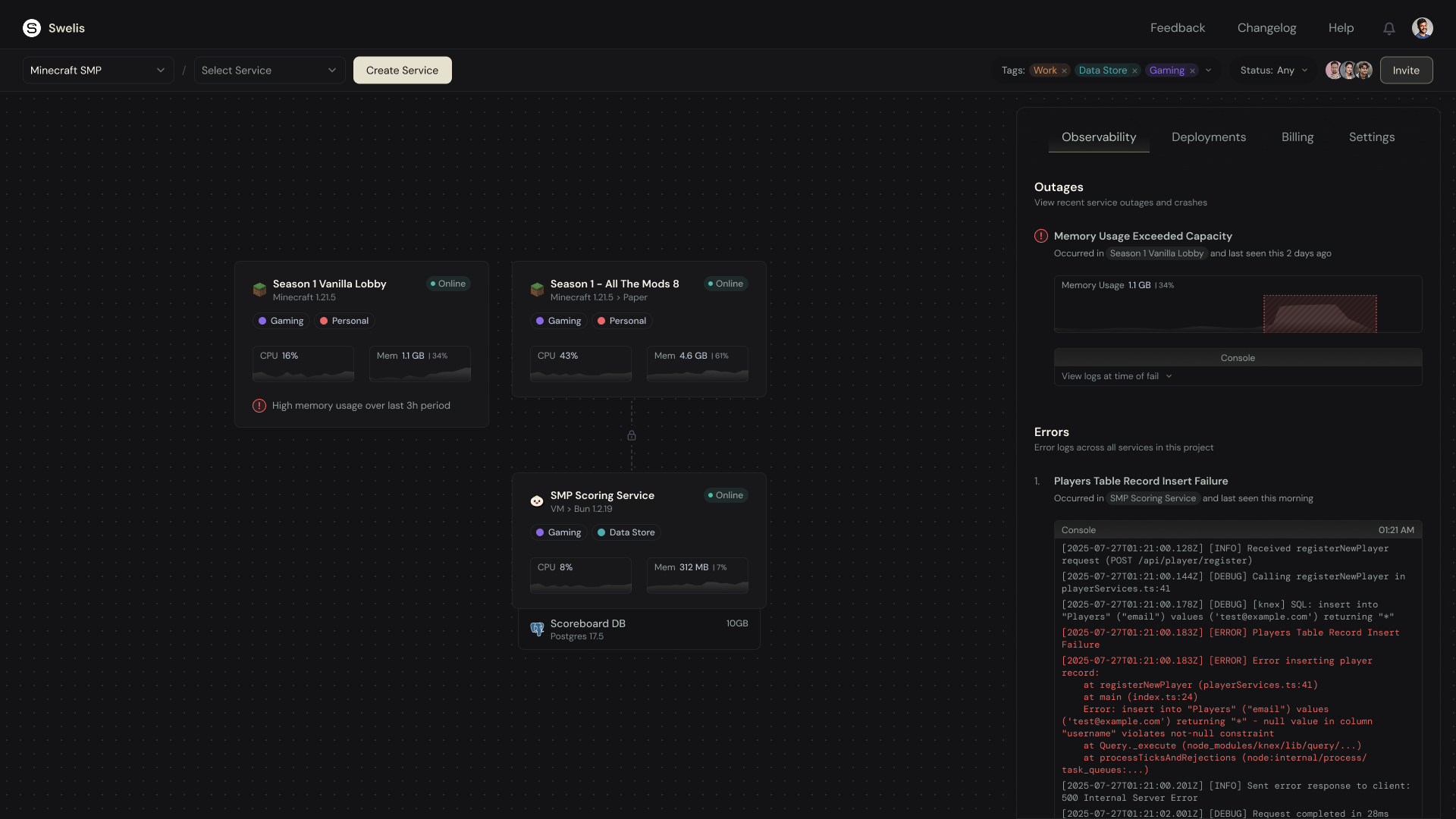
The Observability tab tracks two things:
- Outages — crashes, kill events, memory exhaustion, CPU saturation, and disk near-full
- Errors — log lines the agent spotted in your server output matching
ERROR,Exception,fatal,uncaught,panic,out of memory, and similar patterns
Events are fingerprint-deduplicated, so 500 identical crashes show up as one row with ×500 instead of flooding the list. Every event has severity (Info, Warning, Error, Critical), an occurrence count, and a resolve button — and if a resolved event recurs, it automatically reopens.
Threshold alerts for CPU, RAM, and disk fire at 85%, 95%, and 100% of your allocation — all feeding the same Observability stream so you never have to check three places to see what's going on.
For the full breakdown, read Know When Your Servers Break — Observability & Deployment History on Swelis.
Infrastructure
Every service runs on dedicated hardware in Germany (EU):
- Budget tier: AMD Ryzen 9 7950X3D — great value for most workloads
- Performance tier: AMD Ryzen 9 9950X — maximum single-thread performance
- Storage: SSD
Related Guides
- Getting Started with Minecraft — Set up your first Minecraft server in under 2 minutes.
- Set Up an Avorion Dedicated Server — The same panel powers Avorion galaxy servers too.
- Set Up a Rust Server — Survival hosting with full dashboard control.
- Set Up a Terraria Server — TShock-powered Terraria hosting.
- Set Up an Arma 3 Server — Military simulation with mods and missions.
- Deploy WordPress or Joomla — Website hosting with the same control panel.
- Backup Strategies — Never lose your progress with automatic and manual backups.
- Optimize Server Performance — Tips for reducing lag and improving performance.