Your Own Galaxy Awaits
Avorion is a sandbox space game where you build ships, explore a procedurally generated galaxy, and fight your way to the center. Running your own dedicated server means you and your friends share a persistent universe — and with Swelis, setting one up takes less than two minutes.
1. Create Your Server
Log in to the Swelis Dashboard and click Create Service. Under the Game Servers category, select the Avorion template.
You'll be asked to configure a few things:
- Server Name — The name shown in the server browser
- Galaxy Name — The name of your galaxy (used for the save folder)
- Memory — 4 GB minimum, 6 GB recommended for smooth gameplay
- CPU Cores — our standard core amount is usually more than enough
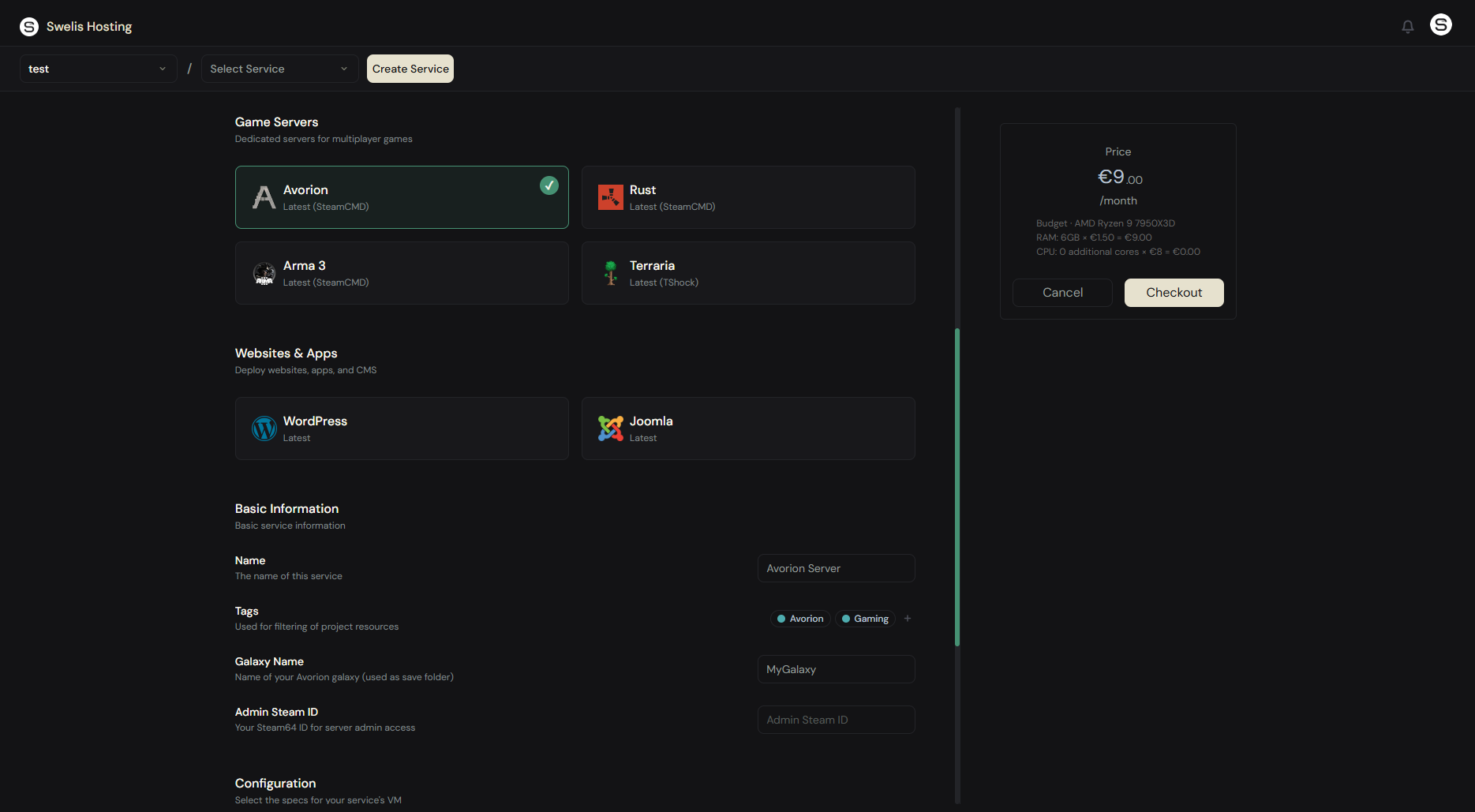
Hit Create and Swelis handles the rest. SteamCMD downloads the latest Avorion server build, your galaxy config is applied, and the server starts automatically.
2. Configure Your Server
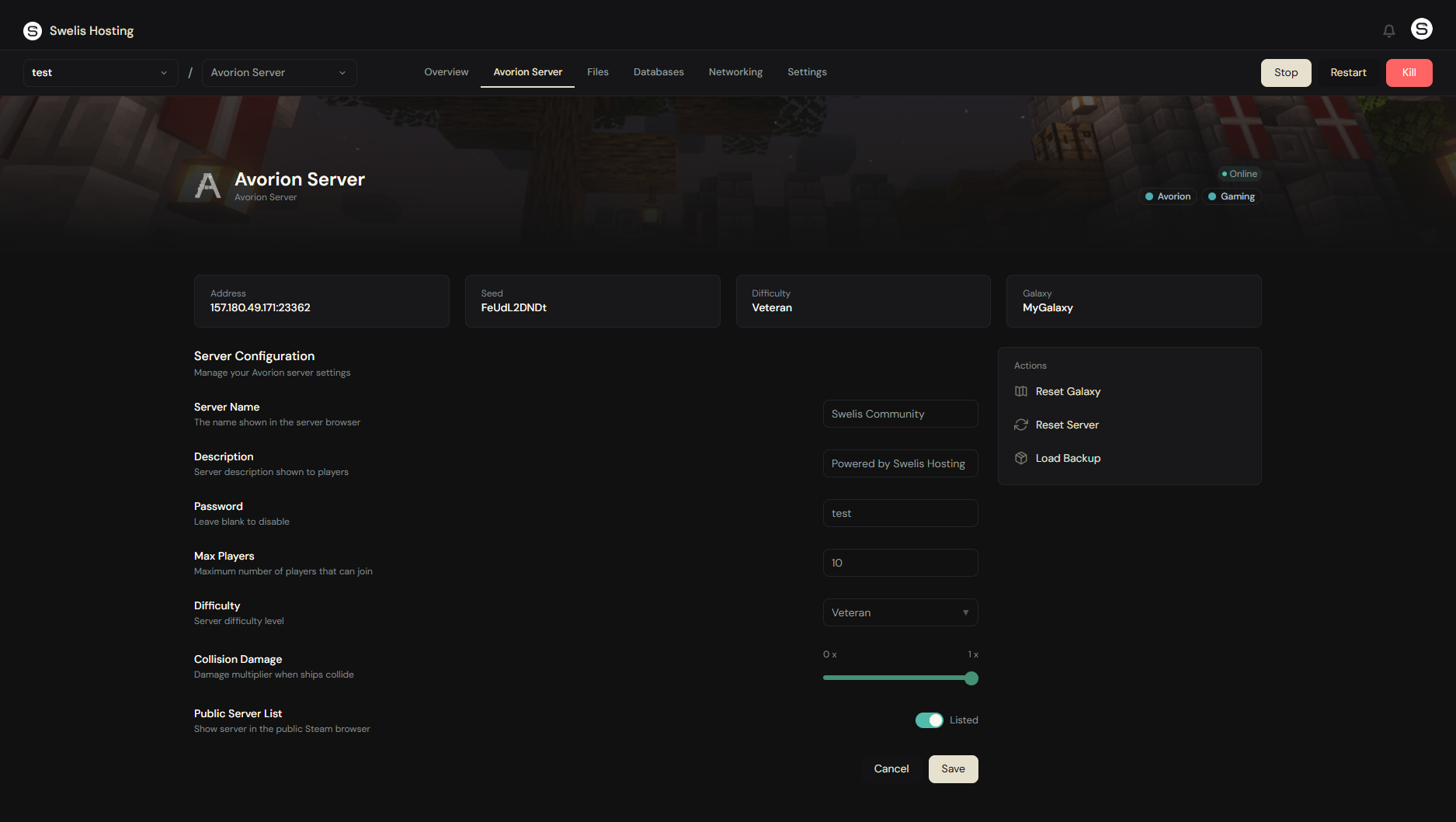
Once provisioned, open your server from the dashboard. The Server Config panel lets you tweak:
- Server Name & Description — What players see in the server list
- Password — Leave blank for a public server, or set one to keep it private
- Max Players — Up to 100 concurrent explorers
- Difficulty — From Beginner to Hardcore (Insane if you're brave)
- Collision Damage — Scale from 0x (off) to 1x (full)
- Public Server List — Toggle whether your server appears in the Avorion server browser
Changes are saved automatically — the server stops, writes the new config, and restarts.
3. Connect and Play
Open Avorion on Steam, go to Multiplayer, and either:
- Search for your server name in the browser (if listed publicly)
- Direct Connect using your server's IP and port from the dashboard
That's it — you're in. Build your first ship and start exploring.
4. Manage Your Server
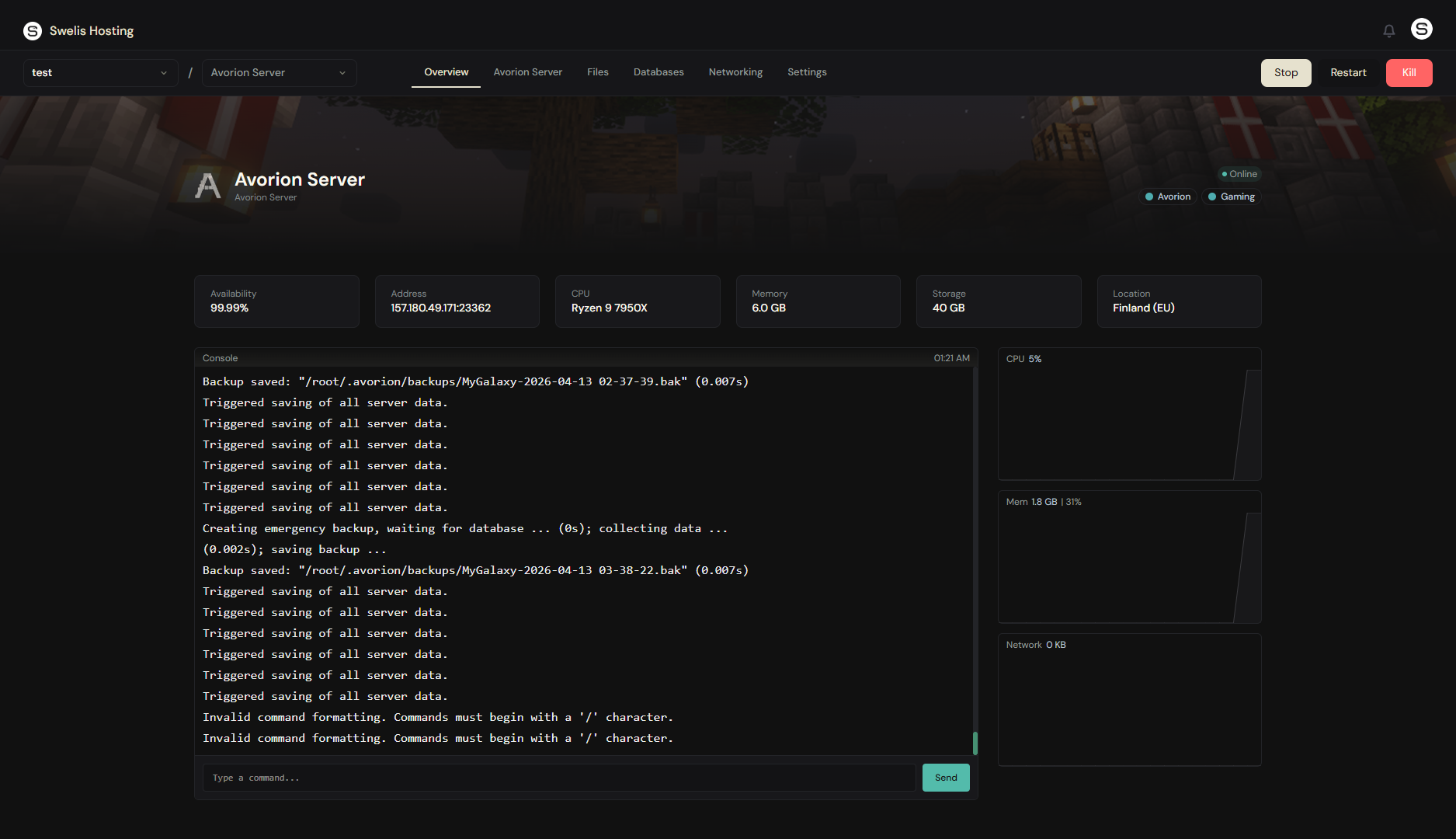
Everything you need is in the Swelis Control Panel:
- Console — Run server commands in real-time (try
/statusor/seed) - File Manager — Browse and edit config files directly in the browser
- FTP Access — Bulk transfer files with any FTP client like FileZilla
- Backups — Create snapshots before major changes and restore them in one click
5. Invite Your Friends
Share your server IP and port. If you set a password, send that along too. Players connect through Avorion's multiplayer menu — no mods or extra software required.
Tips for a Great Avorion Server
Allocate enough RAM. Avorion galaxies grow as players explore. Start with 6 GB and scale up if you notice slowdowns. Check our performance optimization guide for more tips.
Use backups before updates. SteamCMD updates the server on every restart. Occasionally a game update can cause issues with existing saves — a recent backup means you can always roll back.
Set collision damage thoughtfully. Full collision damage (1x) means a stray asteroid or friendly bump can wreck a ship. For casual groups, 0.25x or 0.5x is a good middle ground.
Related Guides
- Set Up a Minecraft Server — Same dashboard, different game.
- Set Up a Rust Server — Survival on your own terms.
- Set Up a Terraria Server — 2D adventure with friends.
- Set Up an Arma 3 Server — Military simulation hosting.
- Backup Strategies — Protect your galaxy before updates.
- A Tour of the Swelis Control Panel — Everything in one place.
Ready to launch? Create your Avorion server now and be exploring your own galaxy in under two minutes.