Your Own Battlefield
Arma 3 is the gold standard for military simulation. Whether you're running co-op missions, PvP scenarios, or a full milsim unit, a dedicated server gives you total control over missions, mods, difficulty, and who gets to play.
Swelis handles the SteamCMD setup, server binaries, and networking — you just configure and play.
1. Create Your Server
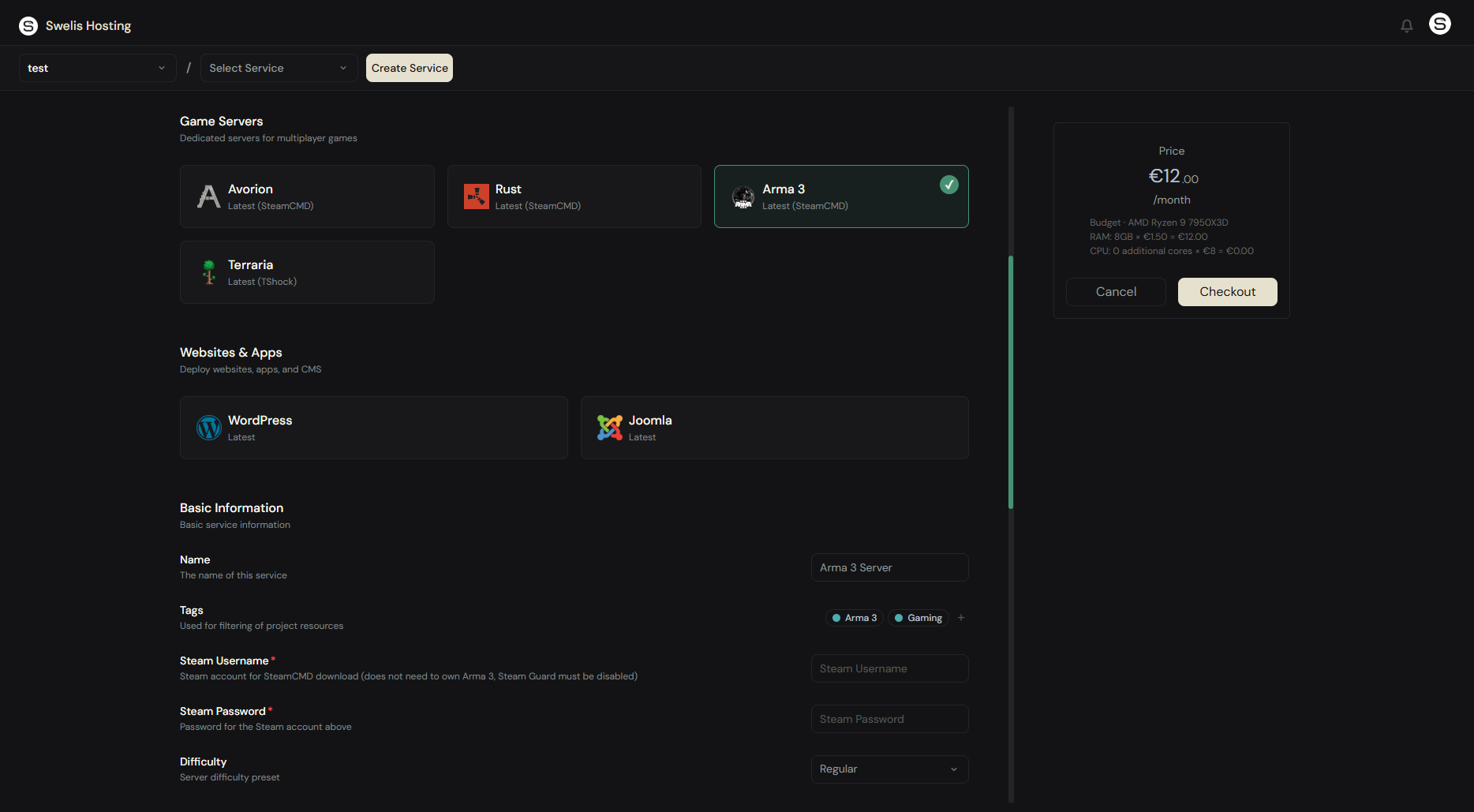
Log in to the Swelis Dashboard and click Create Service. Under Game Servers, select the Arma 3 template.
Configure the server:
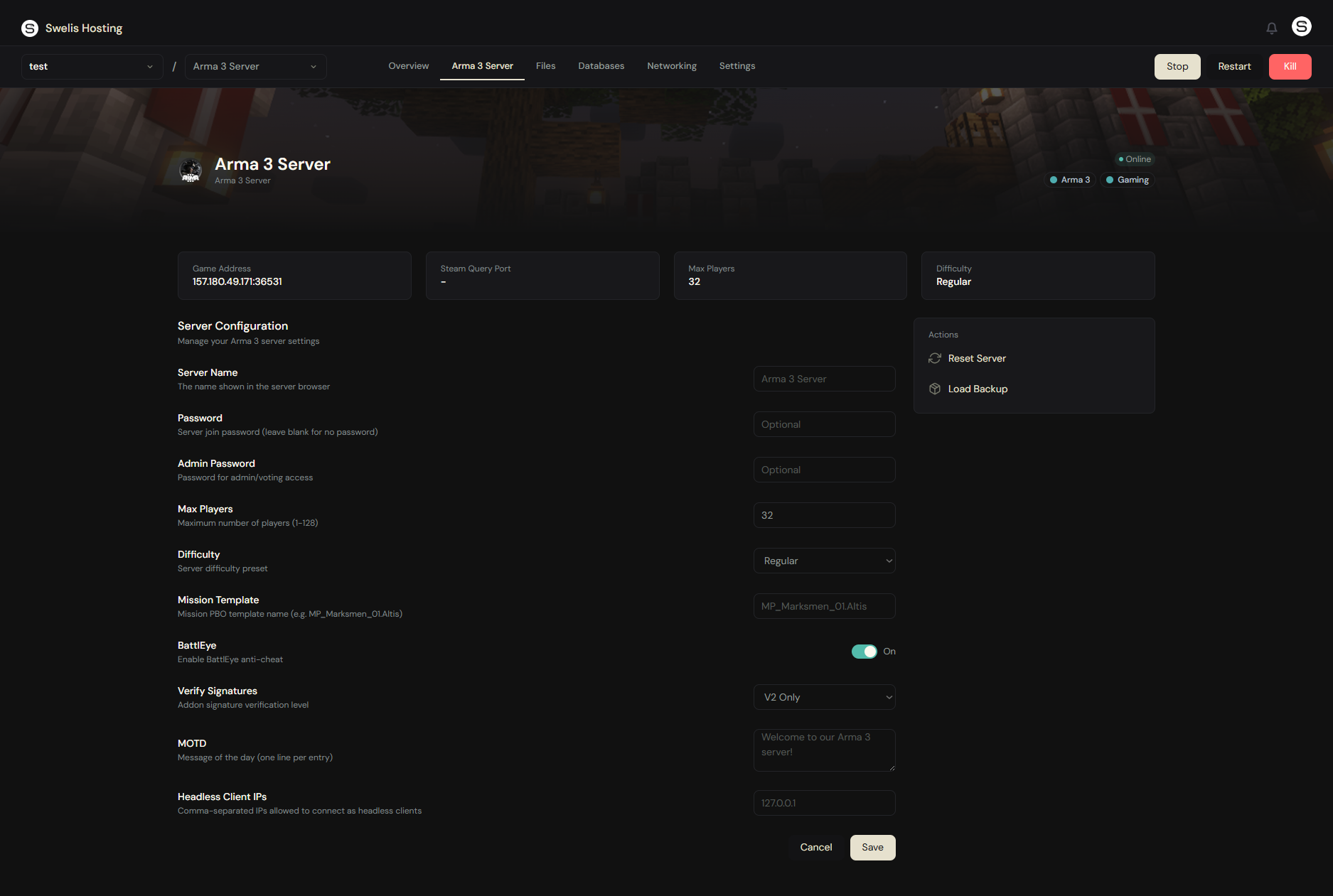
- Server Name — What players see in the server browser
- Steam Username & Password — A Steam account for SteamCMD to download Arma 3 server files. This account does not need to own Arma 3. Steam Guard must be disabled on this account
- Difficulty — Recruit, Regular, Veteran, or Custom
- Mission Template — The mission PBO to load (default:
MP_Marksmen_01.Altis) - Max Players — Up to 128
- Server Password — Leave blank for public, or set one for private operations
- Admin Password — For in-game admin access and voting
- BattlEye — Anti-cheat protection (enabled by default, recommended)
- Memory — 4 GB minimum, 6-8 GB for mod-heavy servers
Click Create and Swelis downloads the server via SteamCMD, applies your config, and starts the server.
2. Connect and Play
Open Arma 3, go to Multiplayer, and either:
- Search for your server name in the browser
- Direct Connect using your server IP and port from the dashboard
- Use the Arma 3 Launcher to connect with mods pre-loaded
If you set mods, players need the same mods installed — the Arma 3 Launcher handles this automatically from Steam Workshop.
3. Manage Your Server
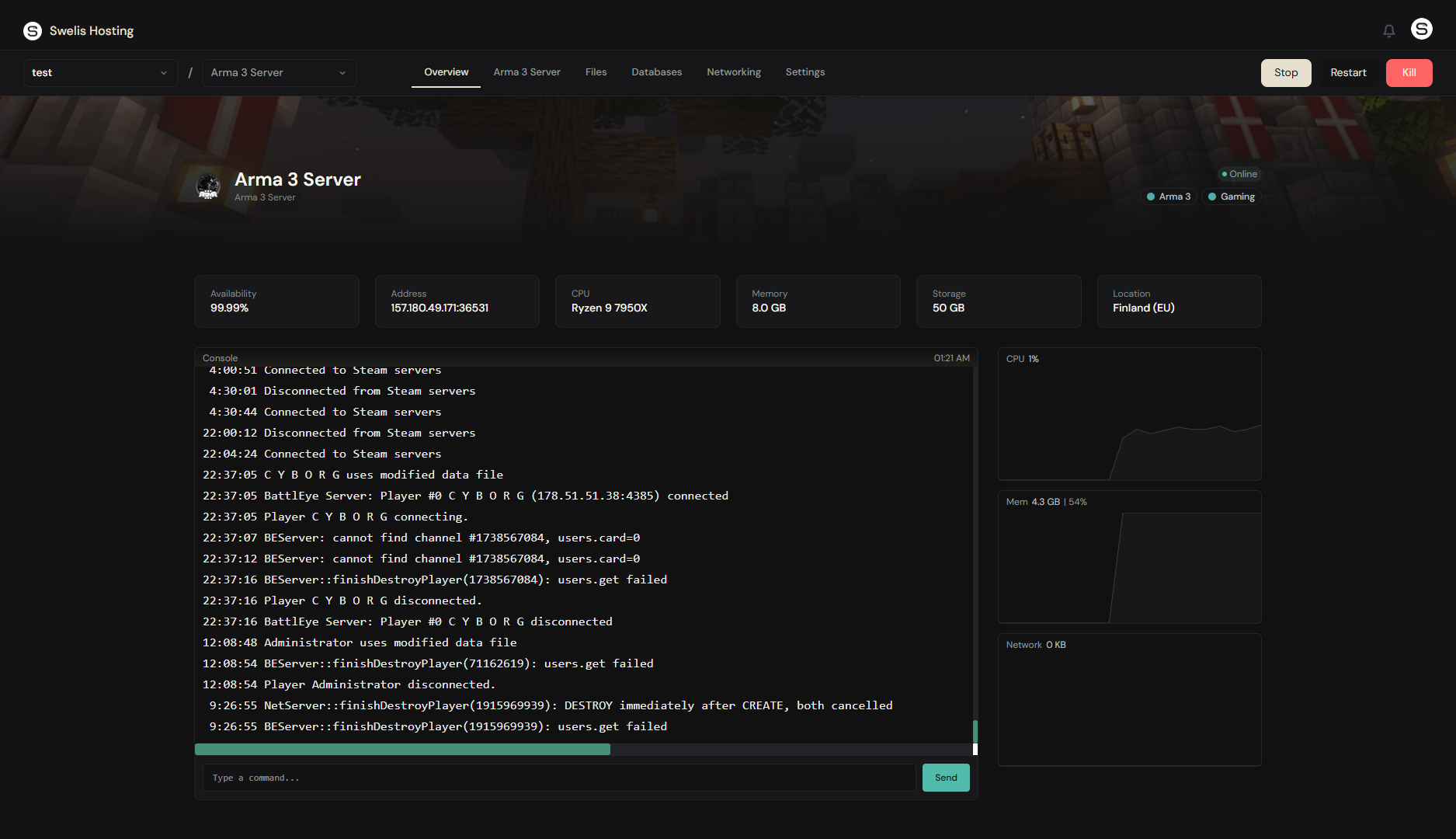
The Swelis Control Panel gives you full control:
- Console — Real-time server output and command input
- File Manager — Edit
server.cfg, upload missions, manage mod folders - FTP Access — Upload large mod folders and mission files with FileZilla
- Backups — Snapshot and restore before mission or mod changes
4. Add Mods
Arma 3's modding community is massive. To add mods:
- Download mods from Steam Workshop to your local machine
- Upload the mod folders (e.g.
@CBA_A3,@ACE) via FTP to your server directory - Update the Mods field in your dashboard config with semicolon-separated folder names:
@cba_a3;@ace - Restart the server
Essential mods for milsim:
- CBA_A3 — Community Base Addons (required by most mods)
- ACE3 — Advanced Combat Environment — medical, ballistics, logistics
- TFAR / ACRE2 — Radio communication mods
- RHS — Realistic unit and vehicle packs
5. Custom Missions
Upload custom mission .pbo files to your server's mpmissions/ folder via the file manager or FTP, then set the mission template name in your server config.
Popular mission frameworks:
- ALiVE — Persistent operations with dynamic AI
- Liberation — Capture territory across the map
- Antistasi — Guerrilla warfare campaign
- Zeus — Game master controlled scenarios
Tips for a Great Arma 3 Server
Start with 4 GB RAM and scale up. Mod-heavy servers (10+ mods) or high player counts (32+) benefit from 6-8 GB.
Use a dedicated Steam account. Create a free Steam account specifically for SteamCMD. Don't use your personal account — it needs Steam Guard disabled.
Enable BattlEye. Arma 3 has a serious cheating problem in public play. BattlEye catches most cheats. Only disable it if you're running a private group that needs specific mods that conflict.
Enable headless client for AI-heavy missions. The headless client offloads AI processing to a separate process, dramatically improving server performance when running missions with many AI units.
Test mission compatibility. Not every mission works with every mod combination. Test on a private session before going live with your unit.
Related Guides
- Set Up a Minecraft Server — Same dashboard, very different game
- Set Up a Rust Server — Another survival-focused server
- Backup Strategies — Protect your missions and configs
- Optimize Server Performance — Keep frame rates high for 64+ players
- A Tour of the Swelis Control Panel — Console, files, FTP, and more
Ready to deploy? Create your Arma 3 server now — briefing starts in two minutes.