Never Lose Your Progress
Whether you're running a Minecraft server with hundreds of hours of builds, an Avorion galaxy your friends have been exploring for weeks, a Rust base you've defended for days, a Terraria world on the edge of hardmode, an Arma 3 unit with custom missions, or a WordPress site with years of content — losing it all to a bad update, a corrupt file, or an accidental deletion is painful. Backups are your safety net.
Here's how Swelis makes it easy.
How Backups Work on Swelis
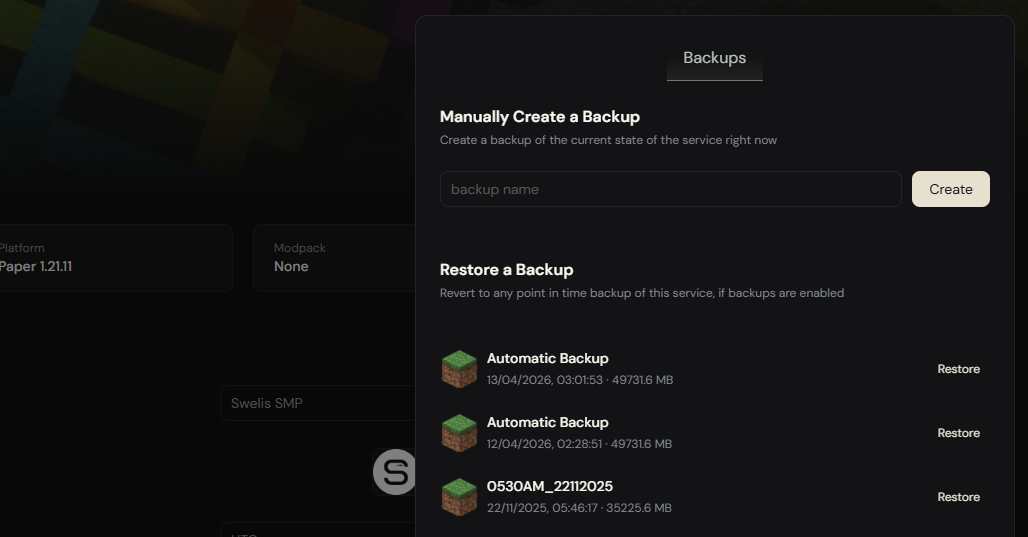
Every service on Swelis — Minecraft, Avorion, WordPress, Joomla — supports backups through the same system. Open your service in the Swelis Control Panel, click Load Backup in the Actions panel, and you'll see the backup manager.
From there you can:
- Create a backup — Give it a name and click Create. Swelis takes a full snapshot of your server files.
- Restore a backup — Pick any existing backup and restore with one click. Your current files are replaced with the snapshot.
- View existing backups — See name, timestamp, and size for each backup.
Storage Limits
Each service can hold up to 2 manual backups and 2 automatic backups. When you create a new backup and the limit is reached, the oldest one is automatically replaced.
When to Back Up
Before Updates
This is the most important one. Whether it's a Minecraft server version update, a WordPress core update, or a Joomla extension install — always back up first. Updates occasionally break things, and having a recent snapshot means you can roll back in seconds instead of rebuilding from scratch.
For Avorion, SteamCMD updates the server automatically on restart. A backup before restarting protects you if a game update causes save compatibility issues.
Before Installing Mods or Plugins
New mods and plugins can conflict with existing ones or corrupt world data. A quick backup before installing gives you a clean rollback point.
Before Config Changes
Editing server.properties, server.ini, wp-config.php, or any critical config file? Back up first. A typo in the wrong place can prevent your server from starting.
Before Resetting
The "Reset World", "Reset Galaxy", and "Reset Site" actions are intentionally destructive. They wipe data to give you a fresh start. If there's any chance you'll want what you had before, create a backup.
Restoring a Backup
Restoring is straightforward:
- Open the backup manager from the Actions panel
- Find the backup you want
- Click Restore
- Confirm
For Minecraft servers, server.jar and eula.txt are preserved during restore — only world data and configs are replaced. This means your server software stays intact.
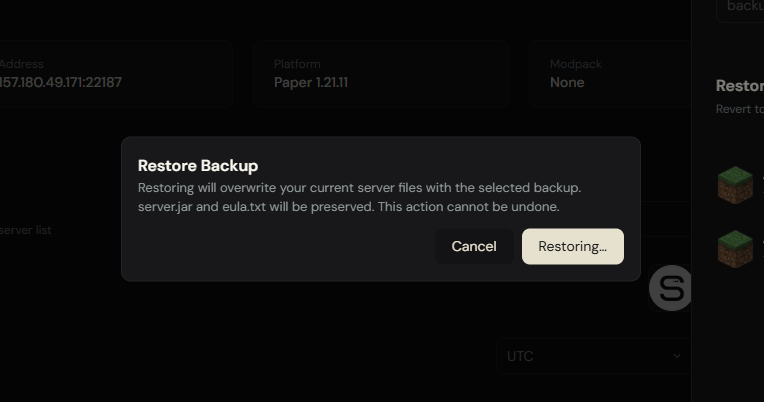
The restore process typically takes 1-3 minutes depending on the size of your files.
Tips for a Solid Backup Strategy
Name your backups clearly. "Before 1.21 update" or "Pre-modpack install" is much more useful than "backup1" when you're trying to find the right snapshot.
Back up before you experiment. Trying a new plugin? Switching server software? Testing a new world seed? Always snapshot first.
Download local copies for critical data. Use FTP or the file manager to download your world folder or site files to your own computer. On-server backups protect against mistakes — local copies protect against everything else.
Don't rely on a single backup. Keep both a recent backup and one from a known-good state. If your latest backup was taken after a problem started, the older one might be the one you need.
What Gets Backed Up
Backups capture your entire server data directory:
| Service | What's included |
|---|---|
| Minecraft | World folders, plugins, configs, server.properties |
| Avorion | Galaxy save, server.ini, all data files |
| Rust | Map data, player saves, oxide plugins, configs |
| Terraria | World files, TShock configs, plugins |
| Arma 3 | Missions, mod folders, server.cfg, profiles |
| WordPress | All site files (wp-content, themes, plugins, uploads) |
| Joomla | All site files, templates, extensions, media |
Database backups for WordPress and Joomla are handled separately through the CMS admin panel (phpMyAdmin for WordPress, Joomla's built-in backup tools).
Related Guides
- Set Up a Minecraft Server — Get started with Minecraft hosting in under 2 minutes.
- Set Up an Avorion Dedicated Server — Launch your own Avorion galaxy.
- Set Up a Rust Server — Survive and build on your own terms.
- Set Up a Terraria Server — Adventure with friends.
- Set Up an Arma 3 Server — Military simulation with full mod support.
- Deploy WordPress or Joomla — Website hosting with automatic backups.
- A Tour of the Swelis Control Panel — See everything the dashboard offers.
- Optimize Server Performance — Keep your server running smoothly.