Getting the Best Performance
Nobody likes lag. Whether you're hosting a Minecraft server, an Avorion galaxy, or a WordPress site, performance matters. Here are proven strategies to keep everything running smoothly on Swelis.
Minecraft Servers
Choose the Right Server Software
Paper is our recommended choice for most servers. It includes significant performance patches over vanilla Minecraft while maintaining full plugin compatibility. If you're running a modded server, Fabric is lighter than Forge for most workloads.
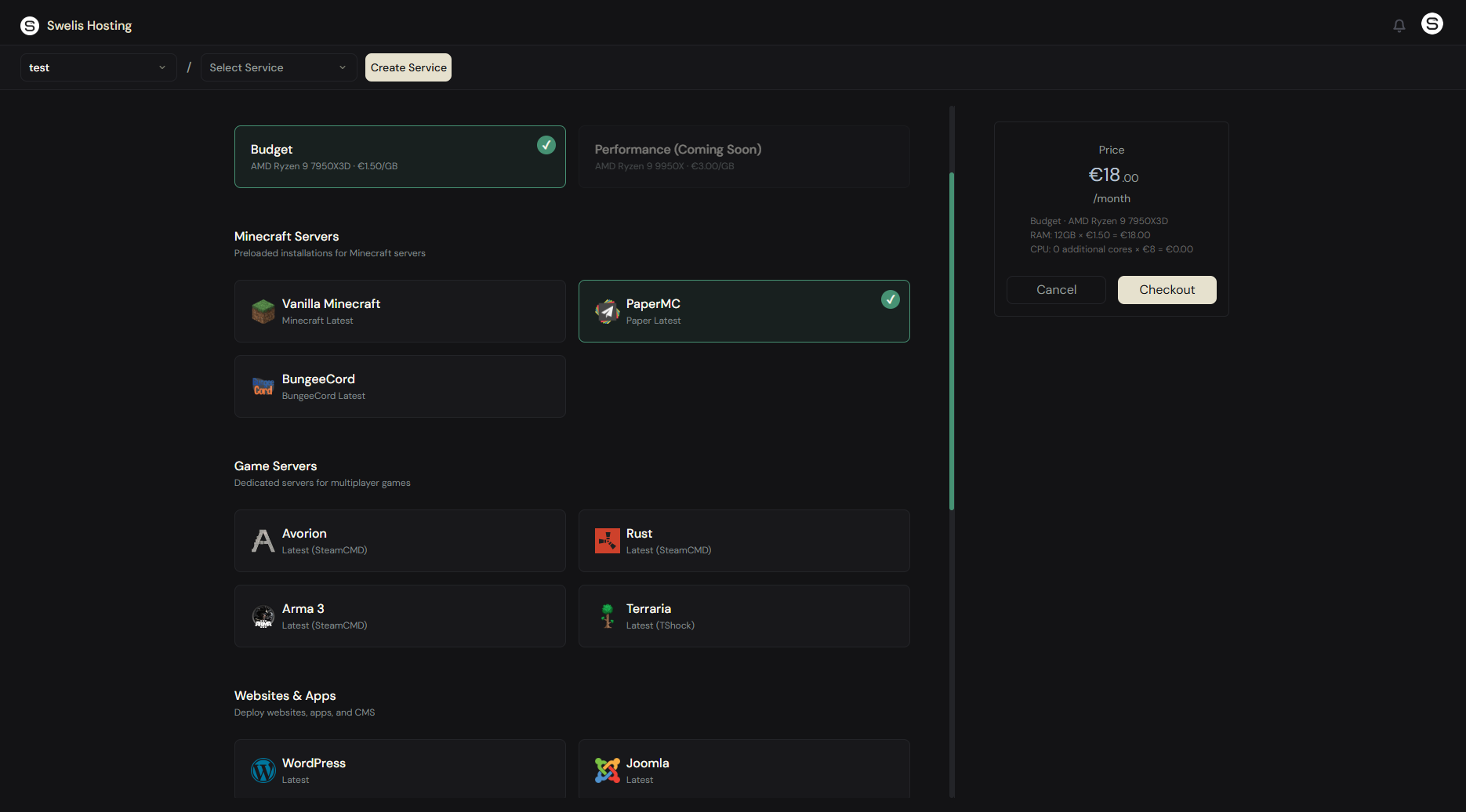
You can switch server software anytime from the Minecraft tab — click Change Version and pick a different distribution.
Allocate the Right Amount of RAM
More RAM isn't always better. Here's a rough guide:
| Server Type | Players | Recommended RAM |
|---|---|---|
| Vanilla / Paper | 1-10 | 4-6 GB |
| Vanilla / Paper | 10-30 | 6-8 GB |
| Light modpack (20-50 mods) | 1-10 | 6-8 GB |
| Heavy modpack (150+ mods) | 1-10 | 8-12 GB |
| Large community server | 30+ | 10-16 GB |
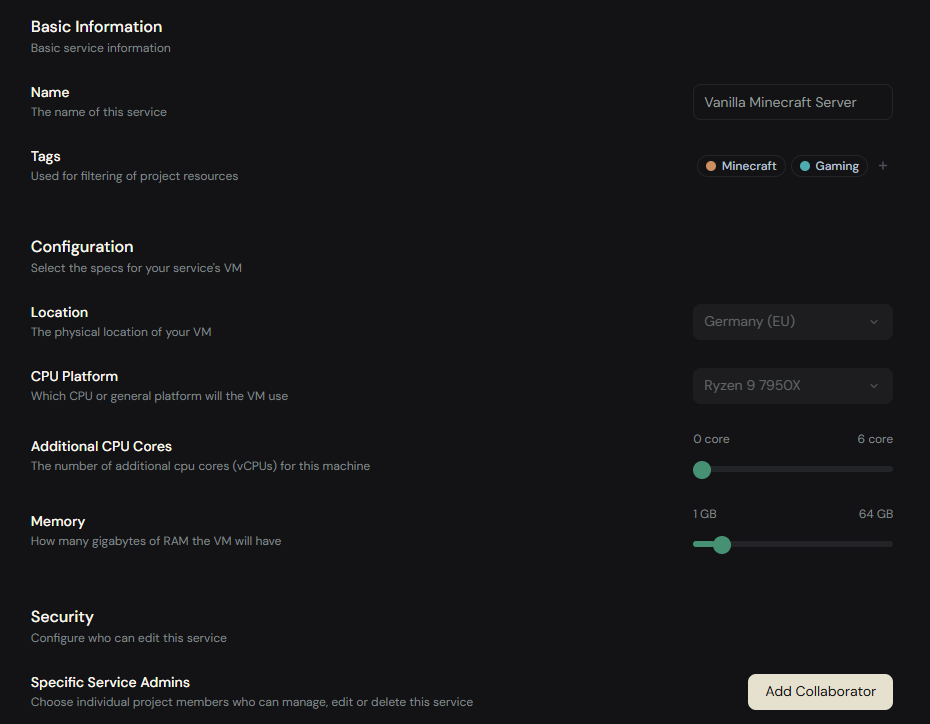
You can upgrade RAM instantly from the Settings tab — the change is prorated, so you only pay the difference for the rest of your billing cycle.
Reduce View Distance
The default view distance of 10 chunks is often overkill. Setting it to 6-8 chunks in server.properties can dramatically reduce CPU and memory usage with barely noticeable difference in gameplay. For large servers, 5 or 6 chunks is common.
Pre-generate Your World
Chunk generation is one of the most CPU-intensive operations in Minecraft. Use a plugin like Chunky to pre-generate your world before players explore it. You can install Chunky directly from the plugin browser in your dashboard.
Limit Entities
Too many mobs, dropped items, or minecarts cause lag. Set reasonable limits in bukkit.yml or spigot.yml:
spawn-limits.monsters: 50(default 70)spawn-limits.animals: 8(default 10)entity-activation-range— reduce for less important entities
Restart Periodically
Java servers accumulate memory fragmentation over time. Restarting every 12-24 hours keeps things fresh. You can restart from the dashboard with one click — stop, then start.
Avorion Servers
RAM Allocation
Avorion galaxies grow as players explore new sectors. Start with 6 GB for a small group and monitor usage from the dashboard metrics. If you see RAM consistently above 80%, upgrade.
Player Count vs Difficulty
Higher difficulties spawn more enemies and create more entities. If you're running a large server (10+ players) on a high difficulty, consider allocating extra CPU cores from the Settings tab.
Galaxy Size
Larger explored galaxies use more resources. If performance degrades over time, it's likely because the galaxy has grown. There's no easy fix other than more RAM or starting a fresh galaxy (with a backup of the old one first).
Rust Servers
Allocate Enough RAM
Rust is one of the most resource-hungry game servers. Start with 10 GB RAM and monitor from the dashboard. Large maps (5000m+) with 50+ players can push 12-14 GB.
Map Size Matters
Smaller maps use significantly less RAM and CPU. A 3000m map is plenty for 20-30 players. Only go above 4000m if you have the resources to back it up.
Use Oxide Wisely
Every Oxide plugin adds overhead. Audit your plugin list — remove anything unused. Plugins that run on every tick (like real-time map overlays) are the biggest offenders.
Plan Your Wipes
Rust servers accumulate entities (bases, deployables, items) over time, degrading performance. Regular wipes keep things snappy. Back up before every wipe with our backup system.
Terraria Servers
World Size and RAM
Small worlds run fine on 1-2 GB. Medium needs 2-3 GB. Large worlds with many active players should have 4 GB. TShock itself is lightweight — the world file is what eats memory.
Limit Concurrent Players
Terraria's server performance degrades noticeably beyond 16 players. If you're running a public server, set a reasonable cap and monitor from the dashboard.
Keep TShock Updated
TShock releases include performance fixes and compatibility patches. Check for updates after Terraria game updates.
Arma 3 Servers
Enable Headless Client
For AI-heavy missions, the headless client is the single biggest performance win. It offloads AI computation to a separate process, freeing the main server thread for player simulation.
Manage View Distance
Server-enforced view distance ('viewDistance' in server.cfg) directly impacts performance. For 32+ player servers, 2000-3000m is a good balance between immersion and performance.
Mod Count
Each mod adds startup time and memory usage. A typical milsim loadout (CBA, ACE, TFAR, RHS) is fine. Going beyond 20 mods requires 6-8 GB RAM and benefits from the Performance CPU tier.
WordPress & Joomla Sites
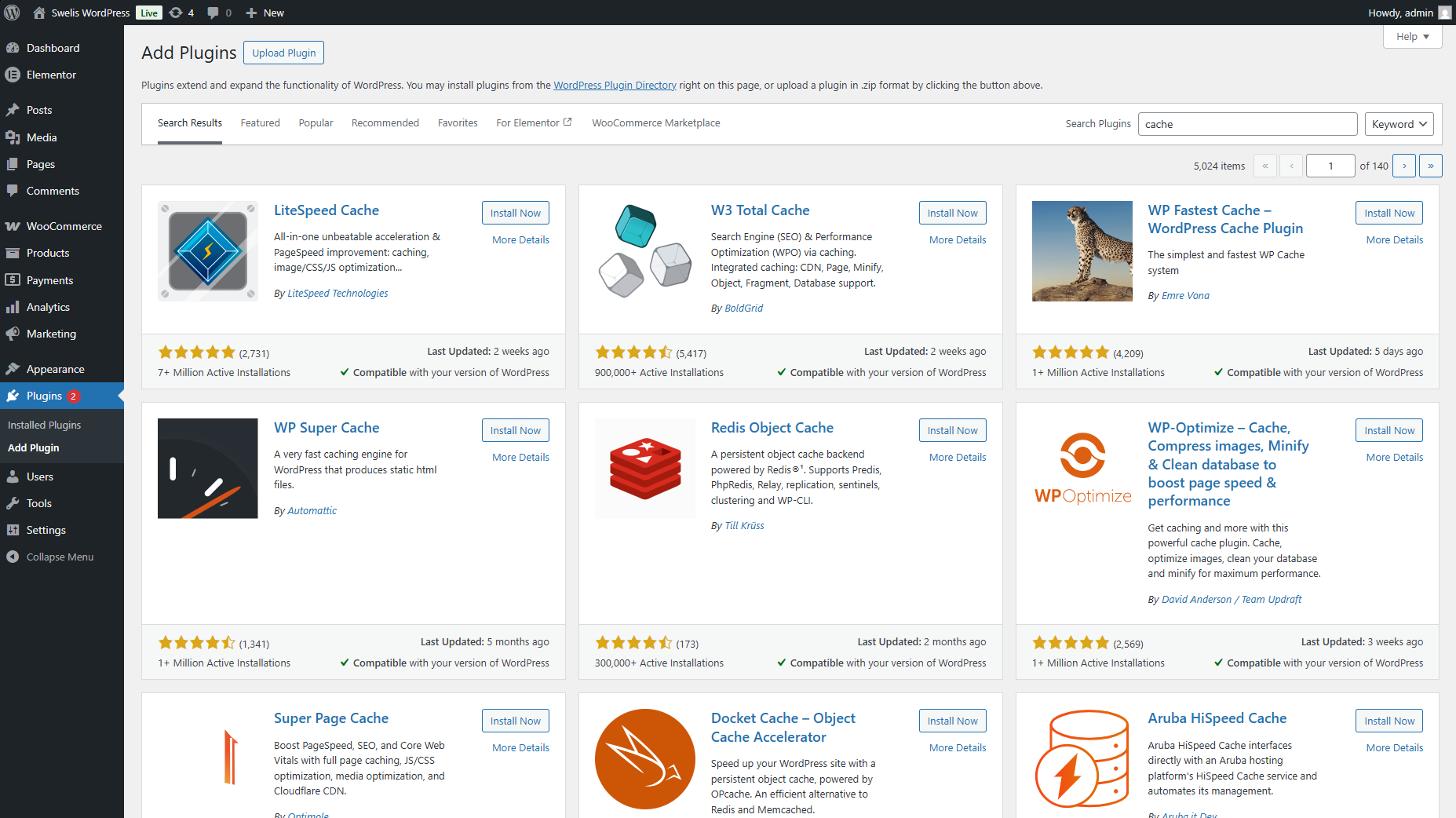
Use a Caching Plugin
For WordPress, install WP Super Cache or W3 Total Cache. These plugins serve static HTML instead of running PHP on every page load, dramatically reducing server CPU usage and response times.
For Joomla, the built-in cache system (System > Global Configuration > System > Cache) achieves the same effect.
Optimize Images
Large images are the #1 cause of slow websites. Use a plugin like ShortPixel or Imagify (WordPress) to automatically compress images on upload. Aim for images under 200 KB each.
Minimize Plugins
Every active plugin adds overhead. Audit your plugins regularly and deactivate anything you're not using. 20 well-chosen plugins will outperform 50 random ones every time.
Keep Everything Updated
WordPress core, themes, and plugins are regularly optimized for performance. Running outdated versions means missing out on these improvements — plus security patches. Always back up first, then update.
General Tips (All Services)
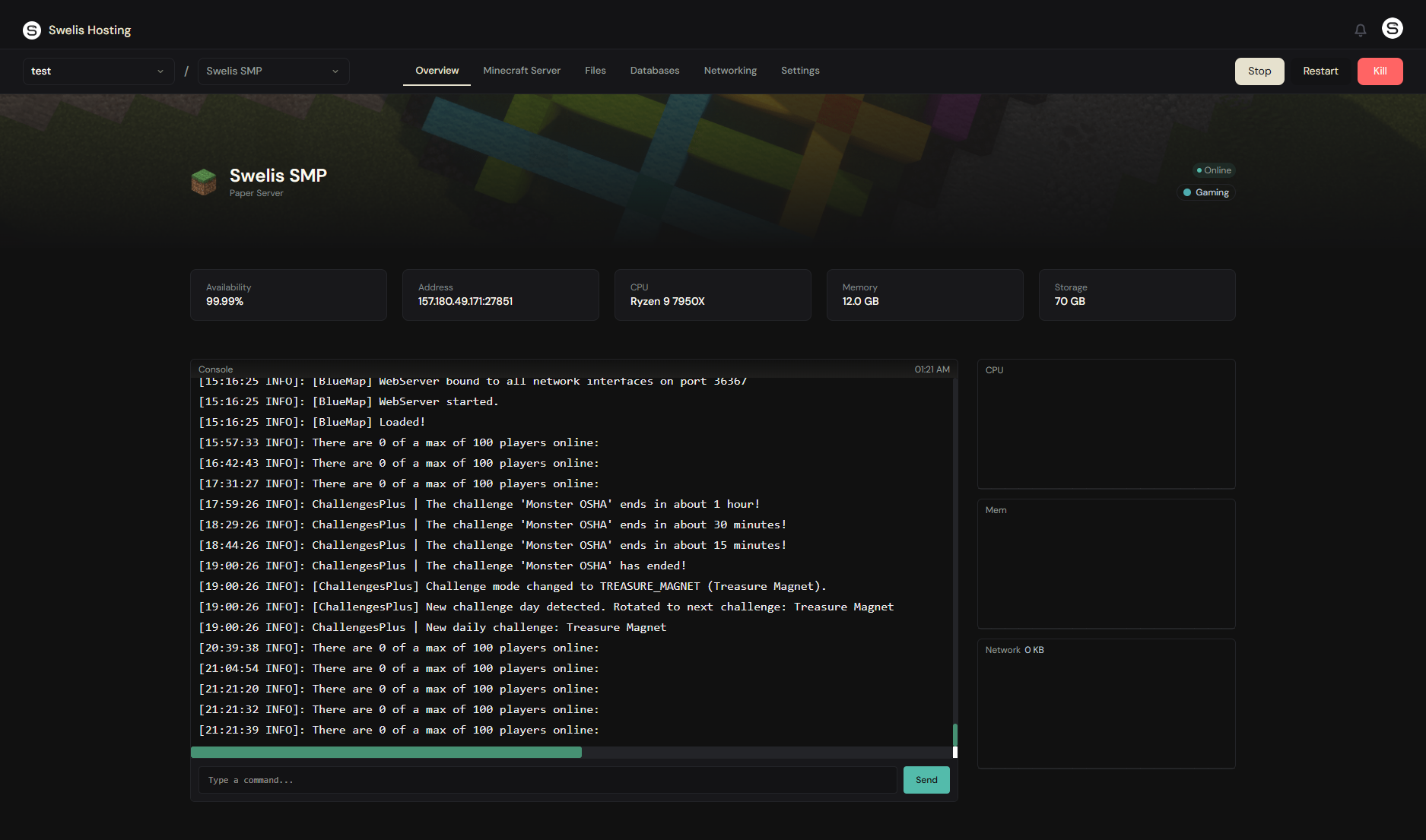
Monitor Your Metrics
The Swelis dashboard shows live CPU, RAM, and network graphs for every service. Check them regularly:
- CPU consistently above 80%? — You might need more cores, or there's a plugin/process eating resources
- RAM consistently above 85%? — Time to upgrade
- Network spikes? — Could be a player downloading large files, a backup running, or unusual traffic
Use the Right Tier
Swelis offers two hardware tiers:
- Budget (AMD Ryzen 9 7950X3D) — Great value, excellent for most workloads thanks to the massive L3 cache
- Performance (AMD Ryzen 9 9950X) — Maximum single-thread speed for the most demanding servers
If your server is CPU-bound (low TPS on Minecraft, slow page loads on WordPress despite caching), the Performance tier may be worth the upgrade.
Add CPU Cores for Heavy Workloads
The base plan includes shared CPU time. For servers with many players, heavy modpacks, or high-traffic websites, adding dedicated CPU cores from the Settings tab gives you guaranteed processing power that isn't shared with other services.
Related Guides
- Set Up a Minecraft Server — Get started with Minecraft hosting.
- Set Up an Avorion Server — Launch your own Avorion galaxy.
- Set Up a Rust Server — High-performance survival hosting.
- Set Up a Terraria Server — Adventure with friends.
- Set Up an Arma 3 Server — Military simulation hosting.
- Deploy WordPress or Joomla — Website hosting on Swelis.
- Backup Strategies — Always back up before making performance changes.
- A Tour of the Swelis Control Panel — Metrics, settings, and upgrades.