Website Hosting, Without the Headache
Setting up WordPress or Joomla usually means buying a VPS, installing a LAMP stack, configuring databases, uploading files, and wrestling with DNS. With Swelis, all of that is automated. You pick a template, enter a domain, and your site is live.
What You Get
Every WordPress and Joomla deployment on Swelis includes:
- Your own domain — Use a custom domain (e.g.
myblog.com) or a freeyourname.swelis.sitesubdomain - Automatic HTTPS — SSL certificates are provisioned and renewed automatically
- File Manager — Browse, upload, and edit files directly in the browser
- FTP Access — Dedicated FTP credentials for bulk file transfers with FileZilla, WinSCP, or any FTP client
- Backups — Create and restore snapshots with one click
- Full Control Panel — Start, stop, restart, and monitor your site from the Swelis Dashboard
Setting Up WordPress
1. Create Your Site
Log in to the Swelis Dashboard and click Create Service. Under Websites & Apps, select WordPress.
Configure your site:
- Name — A label for your dashboard (e.g. "My Blog")
- Domain — Enter your custom domain or pick a
.swelis.sitesubdomain - Memory — 1-2 GB is fine for most sites, scale up for high traffic or heavy plugins
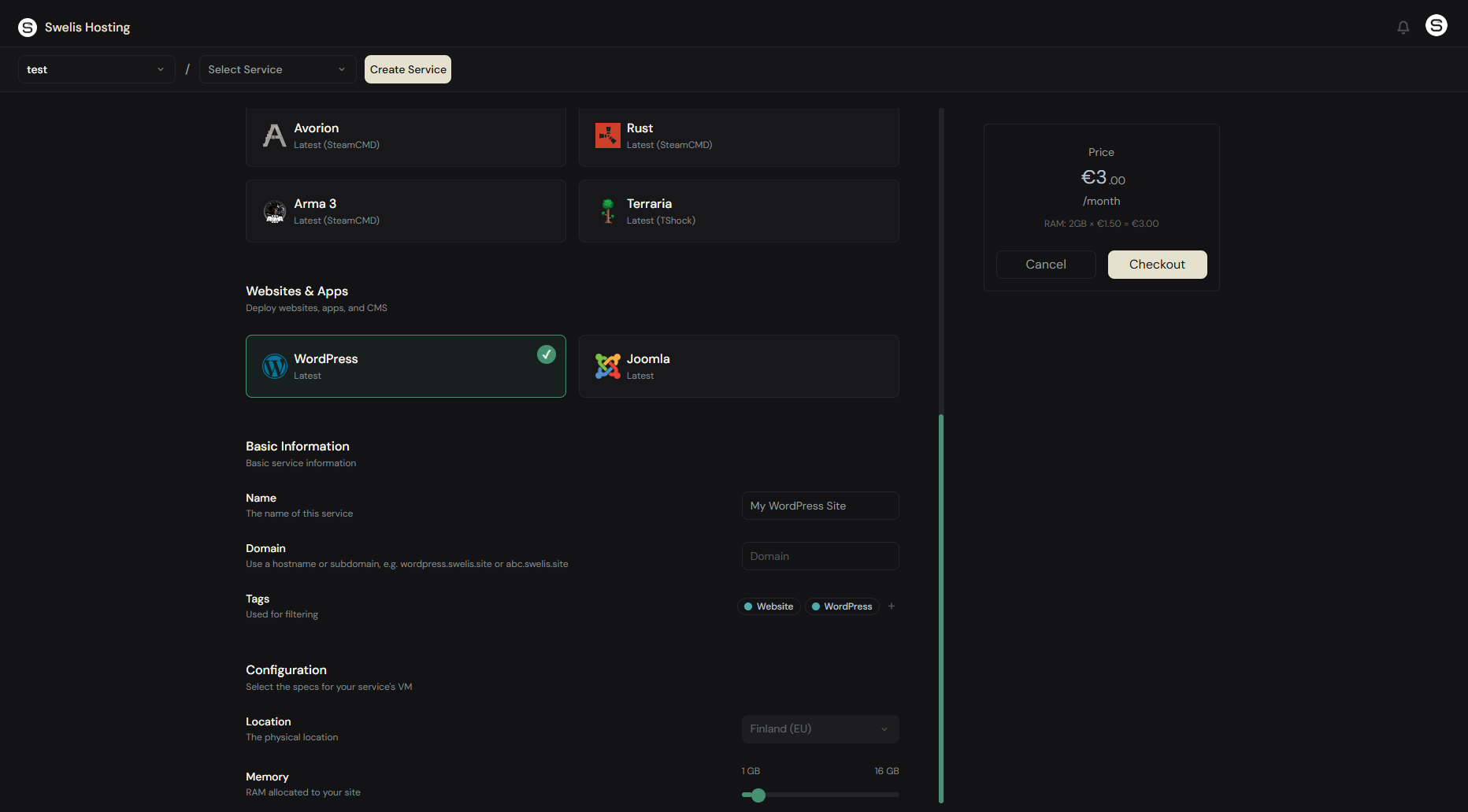
Click Create and Swelis deploys a fresh WordPress installation with its own database, ready to go.
2. Open WordPress
Once provisioned, click your site in the dashboard. You'll see the live URL — open it and you'll land on the WordPress setup wizard. Pick your language, set your admin username and password, and you're in.
3. Install Themes & Plugins
You can install themes and plugins the normal way — through the WordPress admin panel at yourdomain.com/wp-admin. Or use the File Manager or FTP to upload them manually.
Setting Up Joomla
1. Create Your Site
Same process — click Create Service, select Joomla under Websites & Apps, enter your domain and memory allocation, and hit Create.
Swelis deploys a fresh Joomla installation with Apache, PHP, and a MySQL database pre-configured.
2. Run the Joomla Installer
Open your site URL and Joomla's web installer walks you through the initial setup — site name, admin account, database connection (pre-filled), and you're done.
3. Customize
Log in to the Joomla admin panel at yourdomain.com/administrator to install extensions, change templates, and manage content.
Custom Domains
To use your own domain:
- During creation, enter your domain (e.g.
blog.example.com) - Point your domain's DNS to the IP shown in your dashboard (A record or CNAME)
- Swelis automatically detects the DNS change and provisions an SSL certificate
Your site will be accessible over HTTPS within minutes of the DNS propagating.
If you don't have a domain yet, every site gets a free yourname.swelis.site subdomain that works immediately.
Managing Your Site
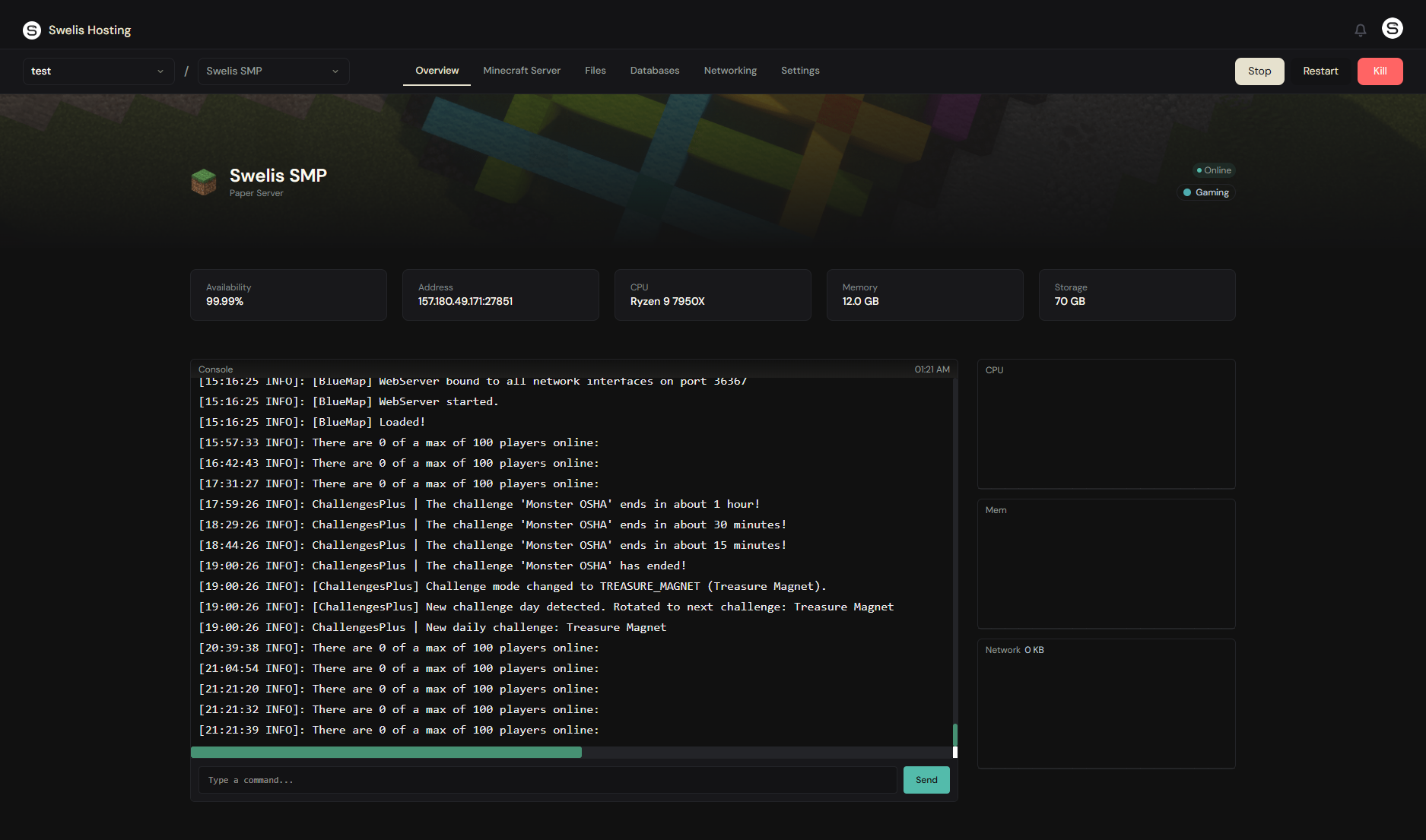
The Swelis Control Panel gives you everything you need:
- Start / Stop / Restart — Full lifecycle control from the dashboard
- File Manager — Edit
wp-config.php,.htaccess, or any file without leaving the browser - FTP — Dedicated port and credentials for each site. Great for uploading themes, media, or full site migrations
- Backups — One-click backup and restore. Always back up before updating WordPress/Joomla core or installing new plugins
- Metrics — Monitor CPU and RAM usage in real-time
Tips for a Great Website
Keep WordPress updated. Core, theme, and plugin updates often include security patches. Back up first, then update from wp-admin.
Use caching plugins. For WordPress, plugins like WP Super Cache or W3 Total Cache dramatically reduce load times and server resource usage.
Optimize images. Large images are the #1 cause of slow websites. Use a plugin like ShortPixel or Imagify to compress them automatically.
Related Guides
- Getting Started with Minecraft — Hosting game servers? Set up Minecraft in minutes.
- Set Up an Avorion Dedicated Server — Launch your own Avorion galaxy.
- Set Up a Rust Server — Survival game hosting.
- Set Up a Terraria Server — Adventure hosting with TShock.
- Set Up an Arma 3 Server — Military simulation hosting.
- Backup Strategies — Keep your site safe with automatic and manual backups.
- A Tour of the Swelis Control Panel — Console, file manager, FTP, and more.
Ready to go? Deploy your WordPress or Joomla site now — it takes less than two minutes.